3. Medicalholodeck AI
3.V1.9-01
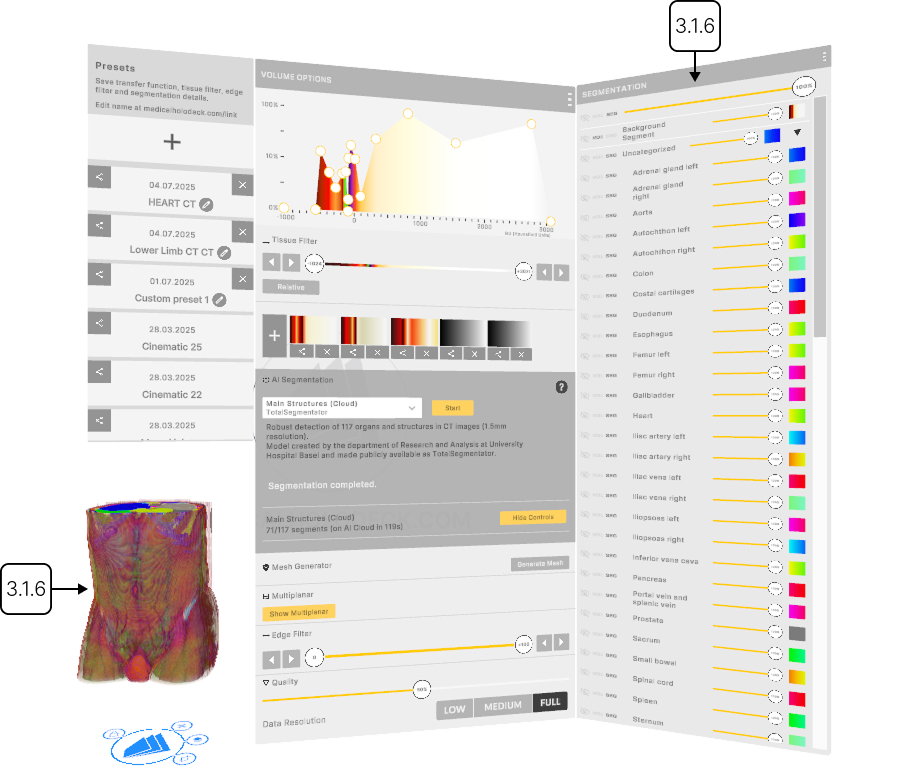
توفر Medicalholodeck AI تقسيمًا تلقائيًا لفحوصات الأشعة المقطعية والرنين المغناطيسي، حيث تحدد وتفصل بسرعة الهياكل التشريحية مثل الأعضاء والعظام والأنسجة. بدلاً من تحديد المناطق يدويًا، تستخدم نماذج الذكاء الاصطناعي المدربة على بيانات مصنفة بخبرة لإكمال المهمة في ثوانٍ. يمكن أيضًا تنفيذ التقسيم محليًا لضمان خصوصية البيانات.
يوفر Medicalholodeck AI تقسيمًا تلقائيًا لفحوصات التصوير المقطعي المحوسب والرنين المغناطيسي، مع تحديد وفصل الهياكل التشريحية مثل الأعضاء والعظام والأنسجة.
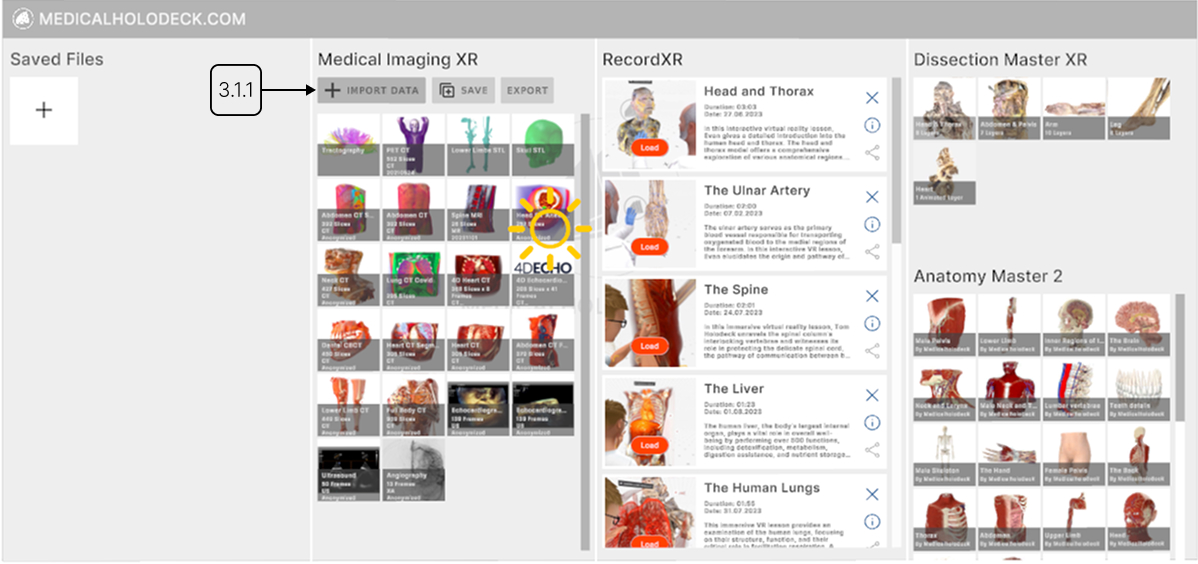
ابدأ بتحميل مجموعة بيانات من المكتبة إلى مساحة العمل.
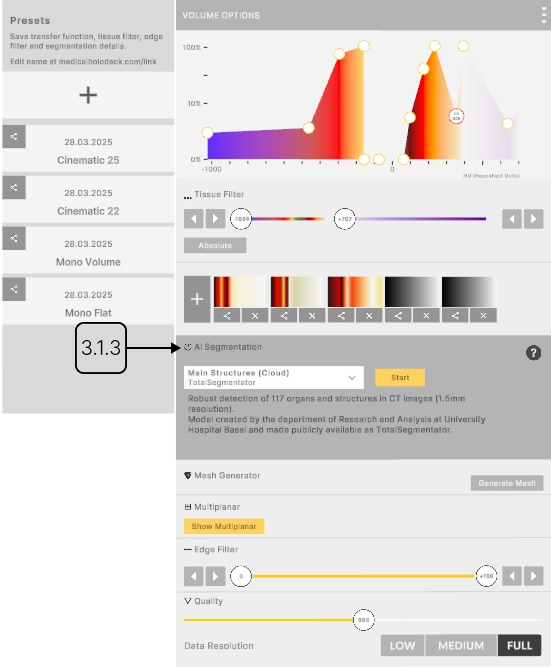
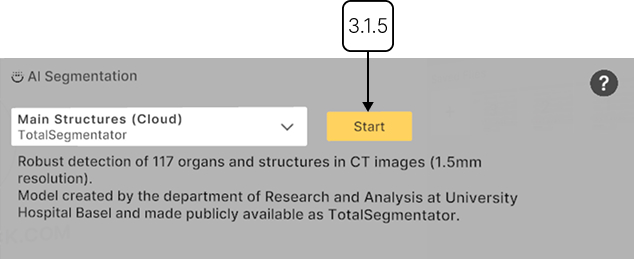
ثم ابحث عن قسم تقسيم الذكاء الاصطناعي في لوحة التصوير الطبي. اختر نموذجًا مُحسّنًا للهياكل التي تريد اكتشافها واضغط 'Start' لبدء التقسيم.
بمجرد اكتمال العملية، تُبرز الهياكل المكتشفة داخل مجموعة البيانات، وتُسَرد أسماؤها في لوحة التقسيم، مجمعة في أقسام.
يمكنك تعديل شفافية مجموعة البيانات بأكملها، أو الخلفية، أو الأقسام والهياكل الفردية باستخدام المتحكّمات المنزلقة. يمكن تبديل الرؤية بين تشغيل وإيقاف، ويمكنك اختيار كيفية عرض البيانات باستخدام دالة النقل الرئيسية أو دالة التقسيم.
خلال كل دالة نقل التقسيم، يمكنك تعديل الشفافية وتعيين ألوان للوحدات هونسفيلد المحددة باستخدام دبابيس الألوان. وحدات هونسفيلد، أو HU، تتيح لك تصفية بيانات DICOM بناءً على الكثافة الإشعاعية.
لإضافة دبوس جديد، انقر في أي مكان داخل القسم. انقل الدبابيس رأسياً – لضبط الشفافية، أو أفقياً لتعيين ألوان لقيم HU محددة. انقر على دبوس لفتح اللوحة الإضافية، حيث يمكنك تغيير لون الدبوس أو إزالته.
استخدم أزرار السهم أو اسحب الدبابيس عبر الشريط المنزلق لتحديد نطاق HU المرئي. في الوضع النسبي، تتكيف الألوان مع نافذة HU الحالية، وتُعاد توزيعها عبر أي نطاق جديد. في الوضع المطلق، تظل الألوان مثبتة على وحدات هونسفيلد محددة.
تخصيص دالة النقل لمجموعة يتجاوز الإعدادات الفردية لهياكلها.
لحفظ دالة النقل، اضغط على زر 'Add' أدناه. قم بالتبديل بين الدوال المحفوظة بالنقر على أيقوناتها.
3.A البداية السريعة
3.A.V1.9-01
3.A.1
استيراد البيانات
3.A.1.V1.9-01
شاهد كيفية تحميل البيانات في Medicalholodeck
3.A.2
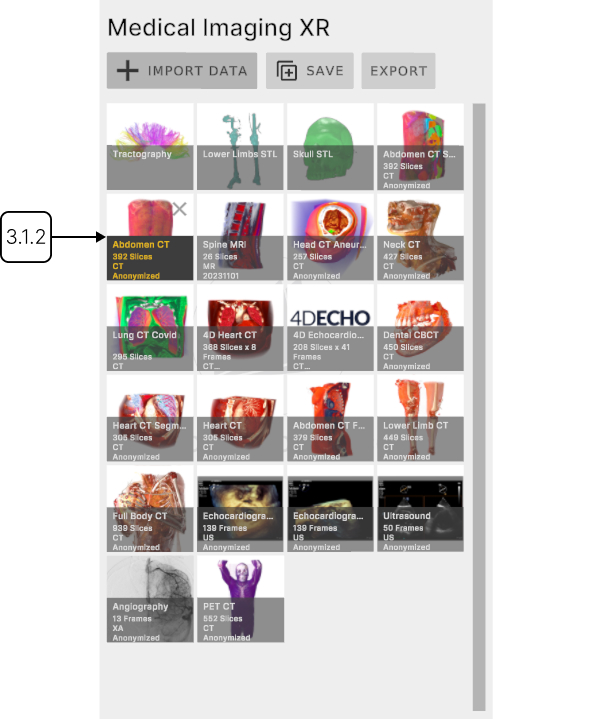
تحميل البيانات إلى مساحة العمل
3.A.2.V1.9-01
ابحث عن البيانات المطلوبة في قسم التصوير الطبي واضغط عليها بالزر.
3.A.3
قسم التقسيم بالذكاء الاصطناعي
3.A.3.V1.9-01
اعثر على قسم التقسيم بالذكاء الاصطناعي في لوحة التصوير الطبي.
3.A.4
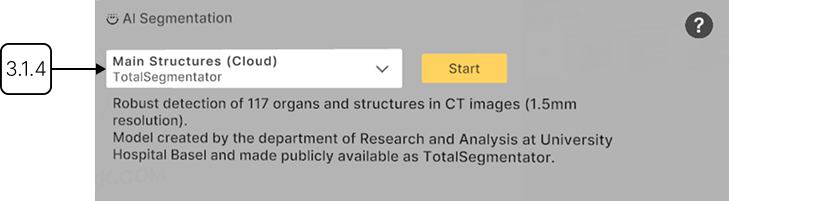
اختيار نموذج ذكاء اصطناعي
3.A.4.V1.9-01
تم تحسين النماذج لأنواع معينة من الفحوصات مثل فحص الجسم الكامل أو الهياكل الرئيسية.
3.A.5
تشغيل التقسيم
3.A.5.V1.9-01
يتم إخفاء هوية جميع البيانات ومعالجتها وفقًا لمعايير HIPAA.
3.A.6
التصور
3.A.6.V1.9-01
يتم تحميل البيانات المقسمة جنبًا إلى جنب مع بيانات DICOM الأصلية، مع تنظيم الهياكل المكتشفة في مجموعات ولوحة تحكم.