3. Medicalholodeck AI
3.V1.9-01
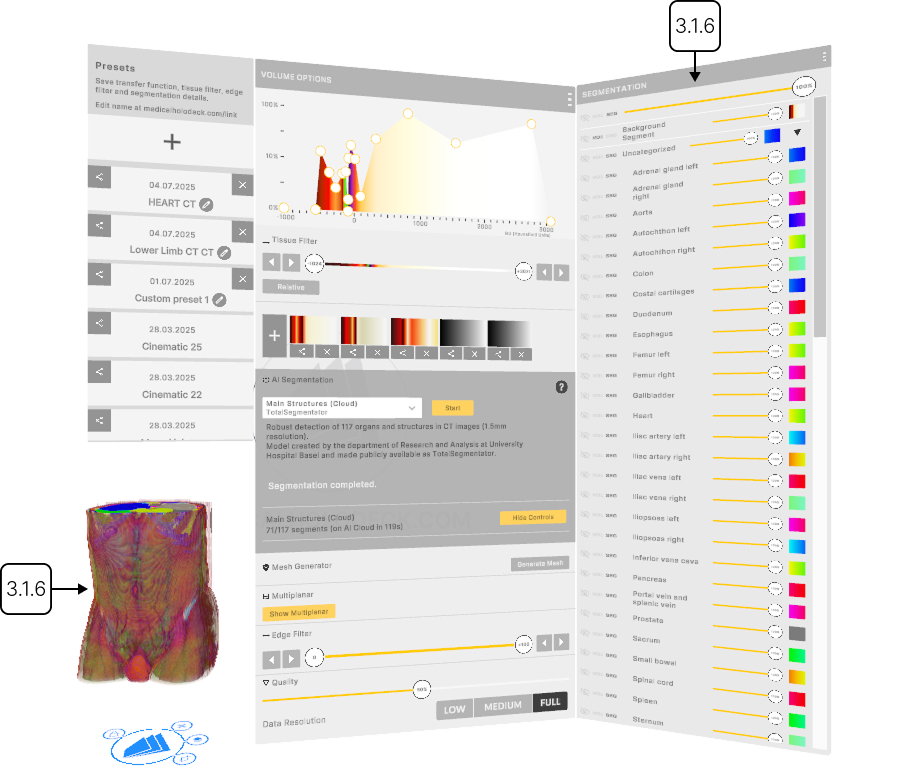
Medicalholodeck AI provides automatic segmentation of CT and MRI scans, quickly identifying and separating anatomical structures such as organs, bones, and tissues. Instead of manually outlining regions, it uses AI models trained on expert-labeled data to complete the task in seconds. Segmentation can also be run locally for ensuring data privacy.
Medicalholodeck AI provides automatic segmentation of CT and MRI scans, identifying and separating anatomical structures such as organs, bones, and tissues.
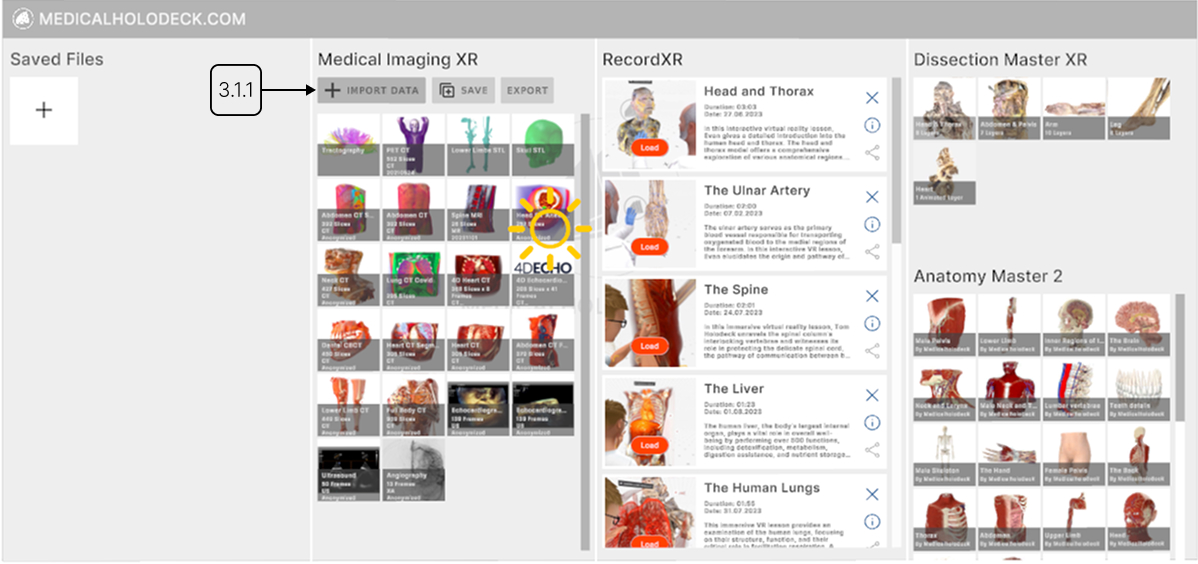
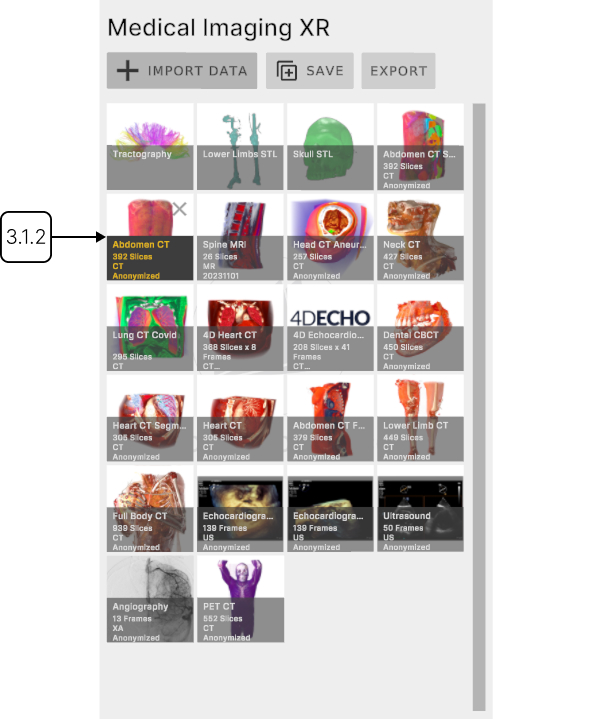
Start by loading a dataset from the library into the workspace.
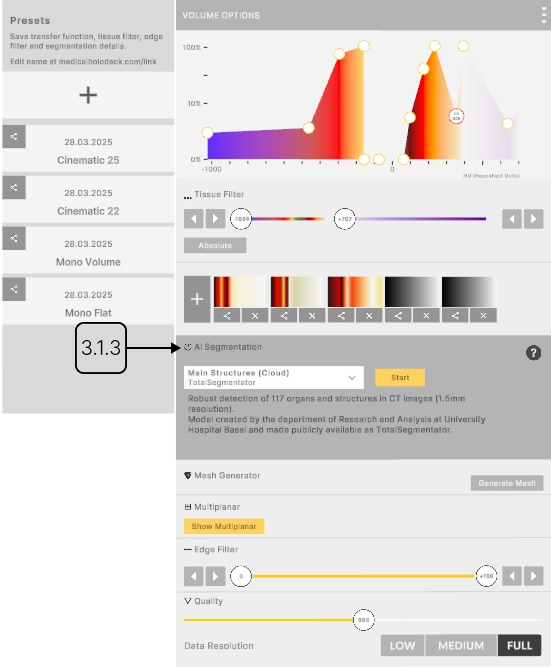
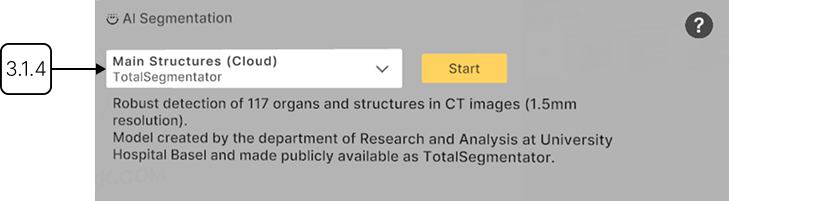
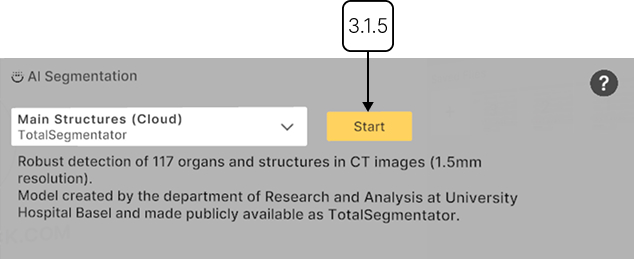
Then find the AI Segmentation section in the Medical Imaging panel. Select a model optimized for structures you want to detect and press 'Start' to begin segmentation.
Once the process is complete, the detected structures are highlighted within the dataset, and their names are listed in the segmentation panel, grouped into sections.
You can adjust the transparency of the entire dataset, the background, or individual sections and structures using the sliders. The visibility can be toggled on or off, and you can choose how the data is displayed using the main or segmentation transfer function.
Within each segmentation transfer function, you can adjust transparency and assign colors to specific Hounsfield Units using color pins. Hounsfield Units, or HU, let you filter DICOM data based on radiodensity.
To add a new pin, click anywhere within the section. Move the pins vertically – to adjust transparency, or horizontally to assign colors to specific HU values. Click at a pin to open the additional panel, where you can change the pin's color or remove it.
Use the arrow buttons or drag the pins along the slider to set the visible HU range. In Relative mode, colors adjust to the current HU window, redistributing across any new range. In Absolute mode, colors remain fixed to specific Hounsfield Units.
Customizing the transfer function of a group overrides the individual settings of its structures.
To save the transfer function, press the 'Add' button below. Switch between the saved functions by clicking on their icons.
3.A Quick start
3.A.V1.9-01
3.A.1
Importing data
3.A.1.V1.9-01
See how to load data into Medicalholodeck
3.A.2
Loading data to the workspace
3.A.2.V1.9-01
Find the desired data in the Medical Imaging section and press it with the trigger.
3.A.3
AI Segmentation section
3.A.3.V1.9-01
Find the AI segmentation section in the Medical Imaging panel.
3.A.4
Choosing an AI model
3.A.4.V1.9-01
The models are optimized for specific scan types, such as full body scan CT or main structures.
3.A.5
Running segmentation
3.A.5.V1.9-01
All data is anonymized and handled in full compliance with HIPAA standards.
3.A.6
Visualization
3.A.6.V1.9-01
The segmented data loads alongside the original DICOM data, with detected structures organised in groups, and a control panel.