
1.6 الإعدادات
1.6.V1.9-01
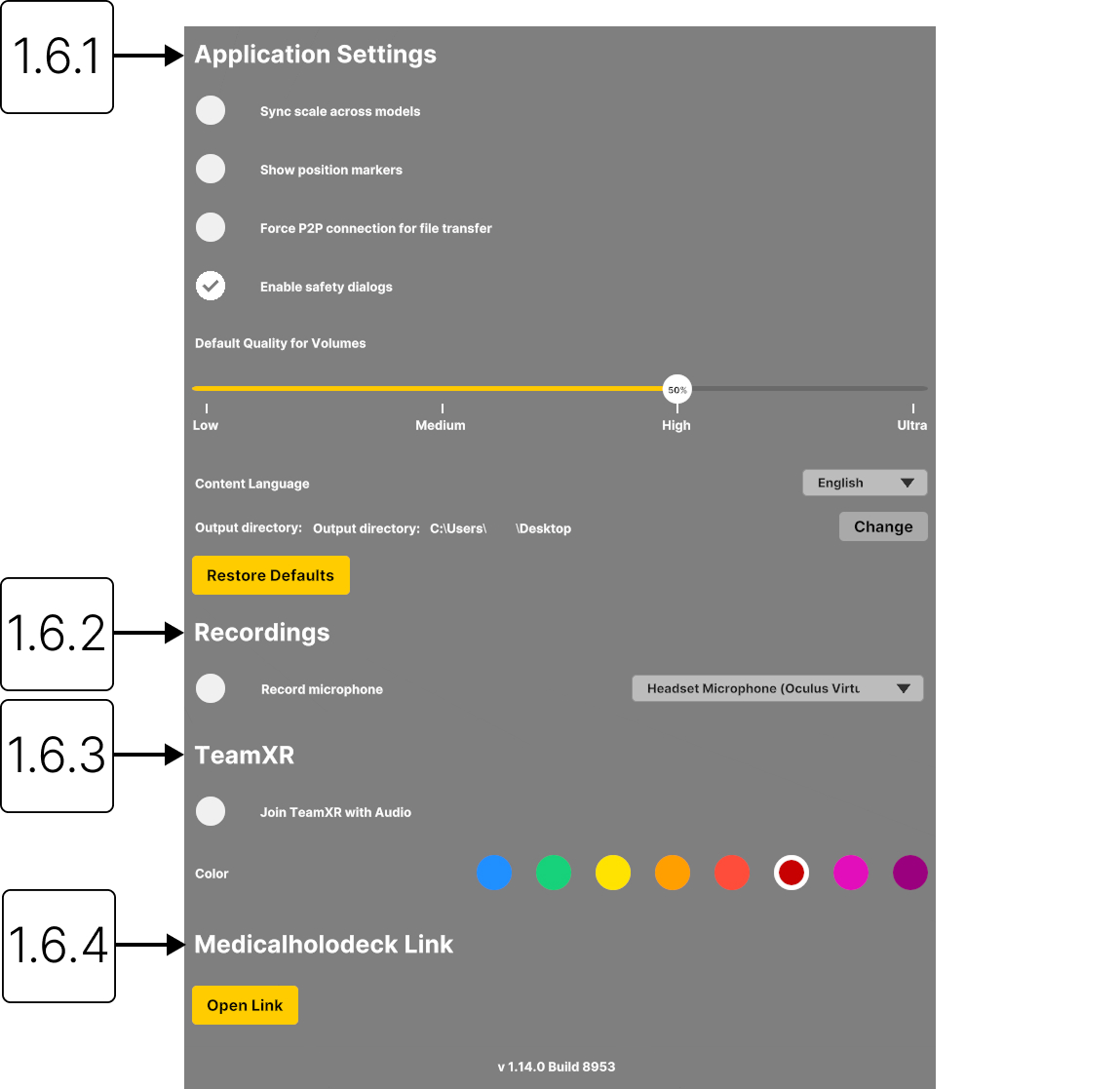
1.6.1
إعدادات التطبيق
1.6.1.V1.9-01
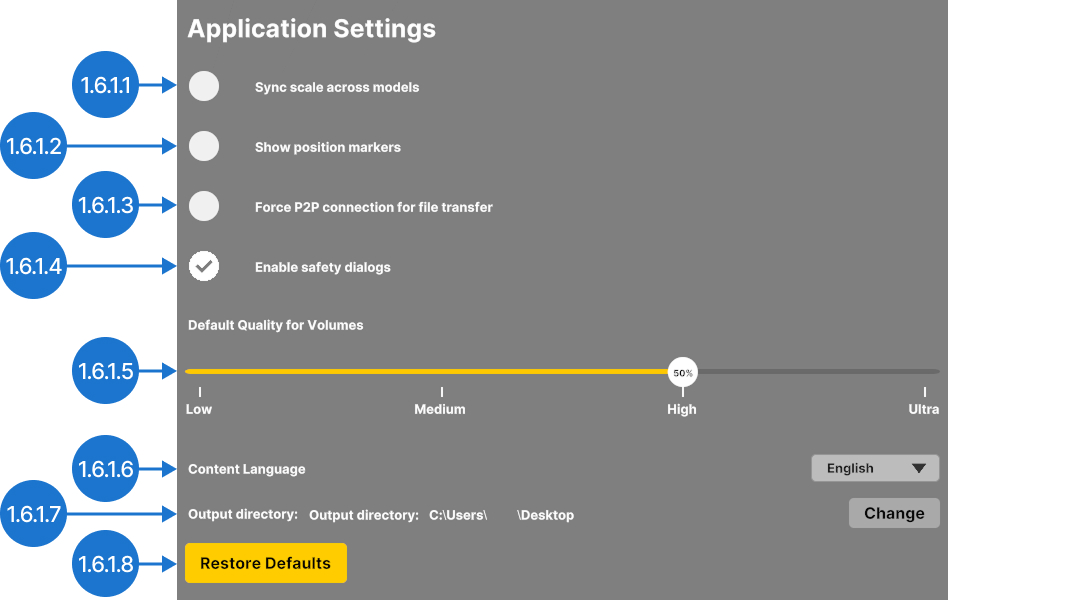
1.6.1.1
مزامنة المقياس بين النماذج
يطبّق عامل القياس نفسه على جميع النماذج في مساحة العمل.
1.6.1.2
إظهار علامات الموضع
اعرض العلامات A (أمامي) وP (خلفي) وL (يسار) وR (يمين) وS (علوي) وI (سفلي) لبيانات DICOM ثلاثية الأبعاد.
1.6.1.3
فرض اتصال P2P لنقل الملفات
يفرض النقل المباشر للبيانات من جهاز إلى آخر. لا يتم تخزين البيانات على خادم، مما يعزز الخصوصية والأمان.
1.6.1.4
تفعيل مربعات حوار الأمان
يعرض مربع حوار للسلامة عندما يظل معدل الإطارات أقل من 10 FPS لأكثر من ثلاث ثوانٍ. يمنح ذلك النظام وقتًا للتعافي ويساعد على منع الجهاز من التوقف عن الاستجابة.
1.6.1.5
الجودة الافتراضية للبيانات الحجمية
يضبط جودة العرض الافتراضية لمجموعات البيانات الحجمية المحمّلة حديثًا. يوازن هذا الإعداد بين الأداء وجودة العرض.
ملاحظة: لا تقدم إعدادات الجودة التي تزيد على 50% سوى تحسينات بصرية طفيفة، لكنها تتطلب قدرة معالجة أكبر بكثير.
1.6.1.6
لغة المحتوى
يحدد لغة المحتوى المعروض في Anatomy Master 2 وDissection Master XR.
1.6.1.7
دليل الإخراج
يتيح لك اختيار دليل التصدير. يتم تحديد سطح المكتب افتراضيًا.
1.6.1.8
استعادة الإعدادات الافتراضية
يعيد ضبط جميع الإعدادات إلى التكوين الافتراضي.
1.6.2
التسجيلات
1.6.2.V1.9-01
1.6.2.1
تسجيل الميكروفون
يسجّل الصوت من الميكروفون ويتيح لك اختيار إدخال الصوت المستخدم في التسجيلات.

1.6.3
TeamXR
1.6.3.V1.9-01
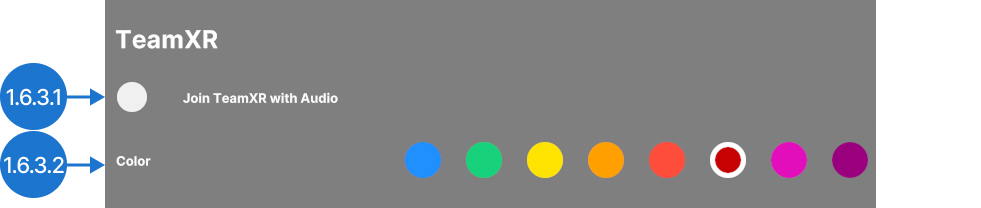
1.6.3.1
الانضمام إلى TeamXR مع الصوت
انضم إلى جلسات TeamXR. يتم تفعيل الميكروفون افتراضيًا.
1.6.3.2
اللون
اختر لون يديك ونظارتك في جلسة TeamXR.
1.6.4
Medicalholodeck Link
1.6.4.V1.9-01
يفتح لوحة معلومات الأجهزة في Link، مما يتيح لك إدارة التراخيص ومجموعات البيانات وRecordXR والإعدادات المسبقة ودوال النقل والتحميلات والدعم. تعرّف على المزيد هنا.