
1.6 Settings
1.6.V1.9-01
1.6.1
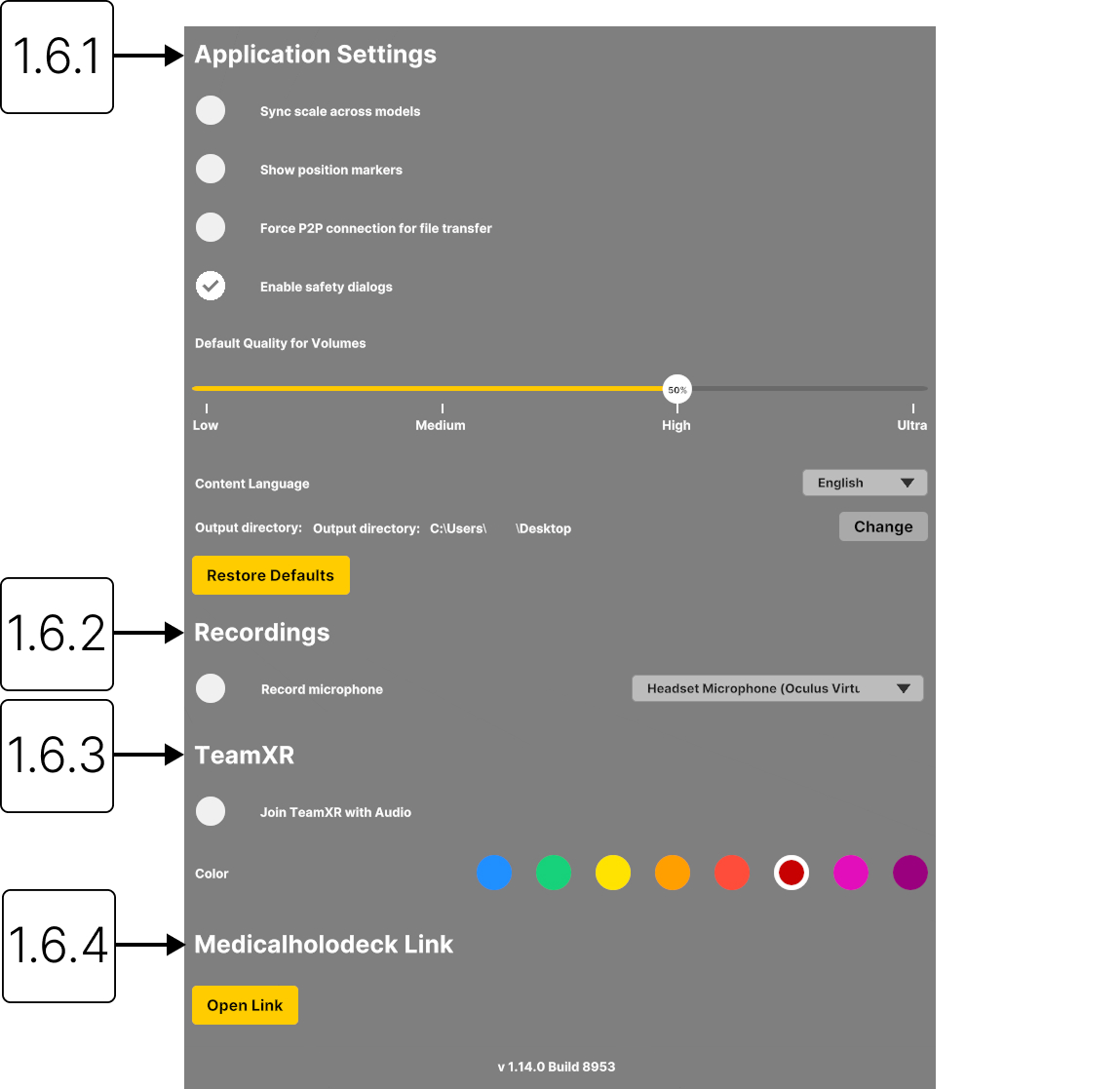
Application settings
1.6.1.V1.9-01
1.6.1.1
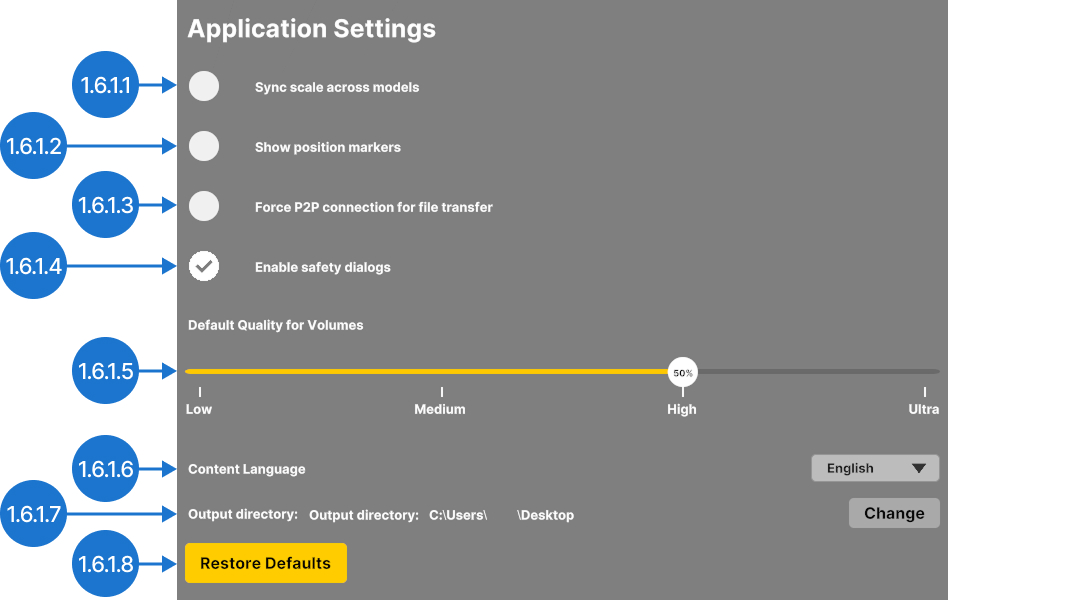
Sync scale across models
Applies the same scaling factor to all models in the workspace.
1.6.1.2
Show position markers
Display A (anterior), P (posterior), L (left), R (right), S (superior), and I (inferior) markers for 3D DICOM datasets.
1.6.1.3
Force P2P connection for file transfer
Forces direct device-to-device data transfer. The data is not stored on a server, enhancing privacy and security.
1.6.1.4
Enable safety dialogs
Displays a safety dialog when the frame rate remains below 10 FPS for more than three seconds. This gives the system time to recover and helps prevent the device from becoming unresponsive.
1.6.1.5
Default quality for volumes
Sets the default rendering quality for newly loaded volumetric datasets. This setting balances performance and visual quality.
Note: quality settings above 50% offer only minor visual improvements but require significantly more processing power.
1.6.1.6
Content language
Sets the content language for Anatomy Master 2 and Dissection Master XR.
1.6.1.7
Output directory
Allows you to choose the export directory. By default the desktop is selected.
1.6.1.8
Restore defaults
Resets all settings to the default configuration.
1.6.2
Recordings
1.6.2.V1.9-01
1.6.2.1
Record microphone
Records audio from your microphone and lets you choose the audio input used for recordings.

1.6.3
TeamXR
1.6.3.V1.9-01
1.6.3.1
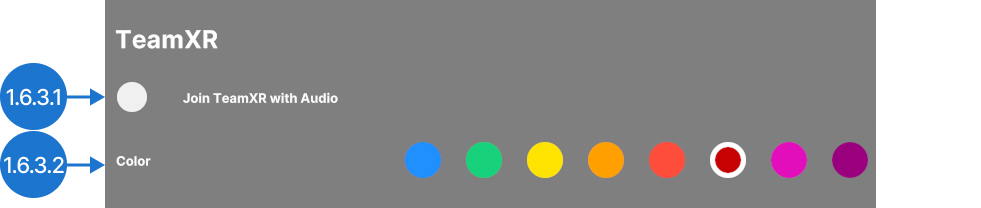
Join TeamXR with audio
Join TeamXR sessions. The microphone is activated by default.
1.6.3.2
Color
Choose the color of your hands and glasses in the TeamXR session.
1.6.4
Medicalholodeck Link
1.6.4.V1.9-01
Opens the Link's device dashboard, allowing you to manage your licenses, datasets, RecordXR, presets, transfer functions, uploads, and support. Learn more here.