
10.1 Creating your Meta managed account and organization
10.1.V1.9-01
To start using Meta Quest devices with device management, first create a Meta managed account and organization.
-
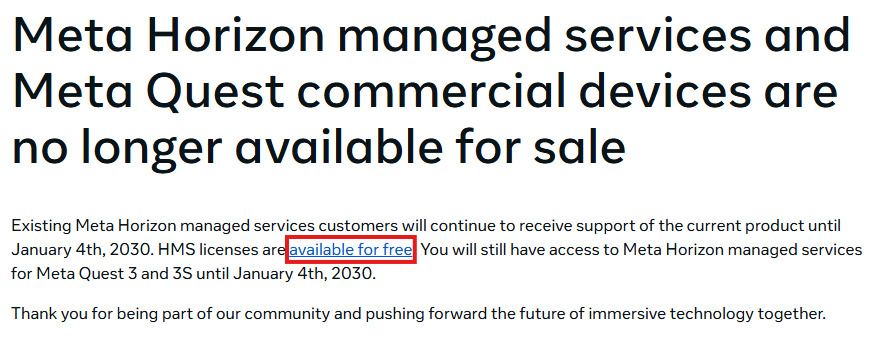
Click the 'available for free' link in the sign-up page.
-
Select your country, then click Get Started. If your country is not on the list of the available countries, select any of the available options. You will be able to choose your specific country later on in the setup process. If you have any questions, contact Meta's Sales team for further assistance.
-
Click Continue on the 'Get started with Meta for Work' screen.
-
Enter your email address, then click Next.
-
You will receive a verification code to your email. Enter the code and confirm it.
-
Create your managed Meta account by entering your name, date of birth, and password.
-
Enter your organization name, select your country, and select your current number of Meta Quest devices.
-
Read and select the checkbox to agree to the Meta Horizon Managed Solutions Terms of Service, then click Next.
-
Review the details and create the account.
-
Set up two-factor authentication. You can use an authenticator app or SMS, depending on the options available.
-
Download and safely store the backup codes. These are important if you lose access to your phone or authenticator app.
After this step, you signed up for your free Horizon managed services account and you can start enrolling your Meta Quest headsets.