
10.2 Enrolling Meta Quest Devices through Horizon Managed Services
10.2.V1.9-01
10.2.1
Add Medicalholodeck to Apps & content
10.2.1.V1.9-01
Before enrolling headsets, add Medicalholodeck to your organization's apps in Meta Horizon Device Manager. Meta allows admins to add Meta Horizon Store apps to the organization’s apps in Device Manager.
- Log in to the HMS's Device Manager.
- In the side menu, go to Apps & content.
- Select Manage apps.
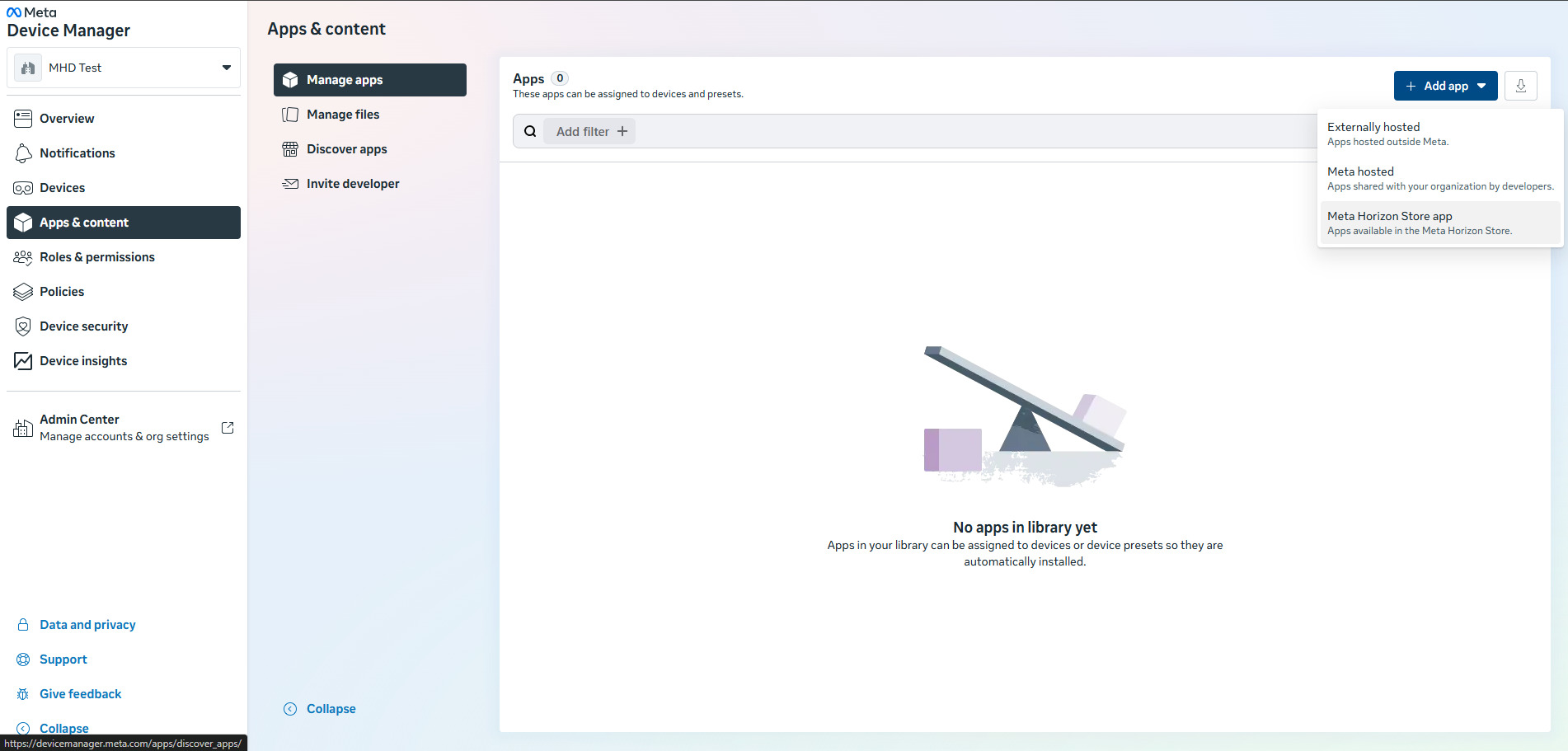
- Click Add app.
-
Select Meta Horizon Store app.
-
In search bar type and select Medicalholodeck.
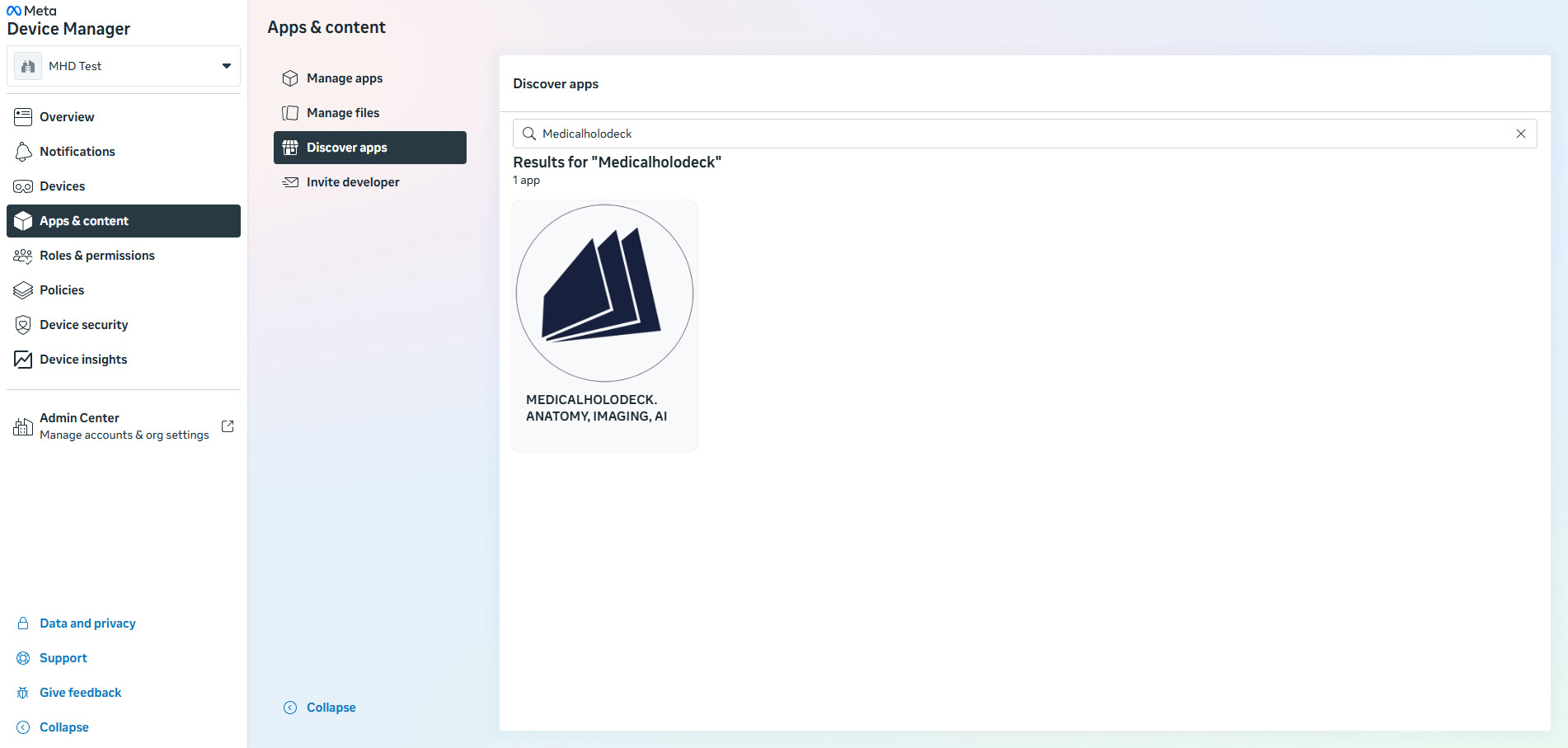
- Click Add to your apps.
After this step, Medicalholodeck is available in your organization and can be assigned to device presets or devices.
10.2.2
Add your Wi-Fi network
10.2.2.V1.9-01
If headsets will be enrolled in one location and then used in another - for example, enrolled by a hardware provider and shipped to your site - make sure to add the Wi-Fi network that will be used at your site to your organization before creating the device preset. This makes the network available when you create the device preset, so it can be pushed automatically to every headset using that preset instead of being entered manually on each device.
- Open HMS's Device Manager.
-
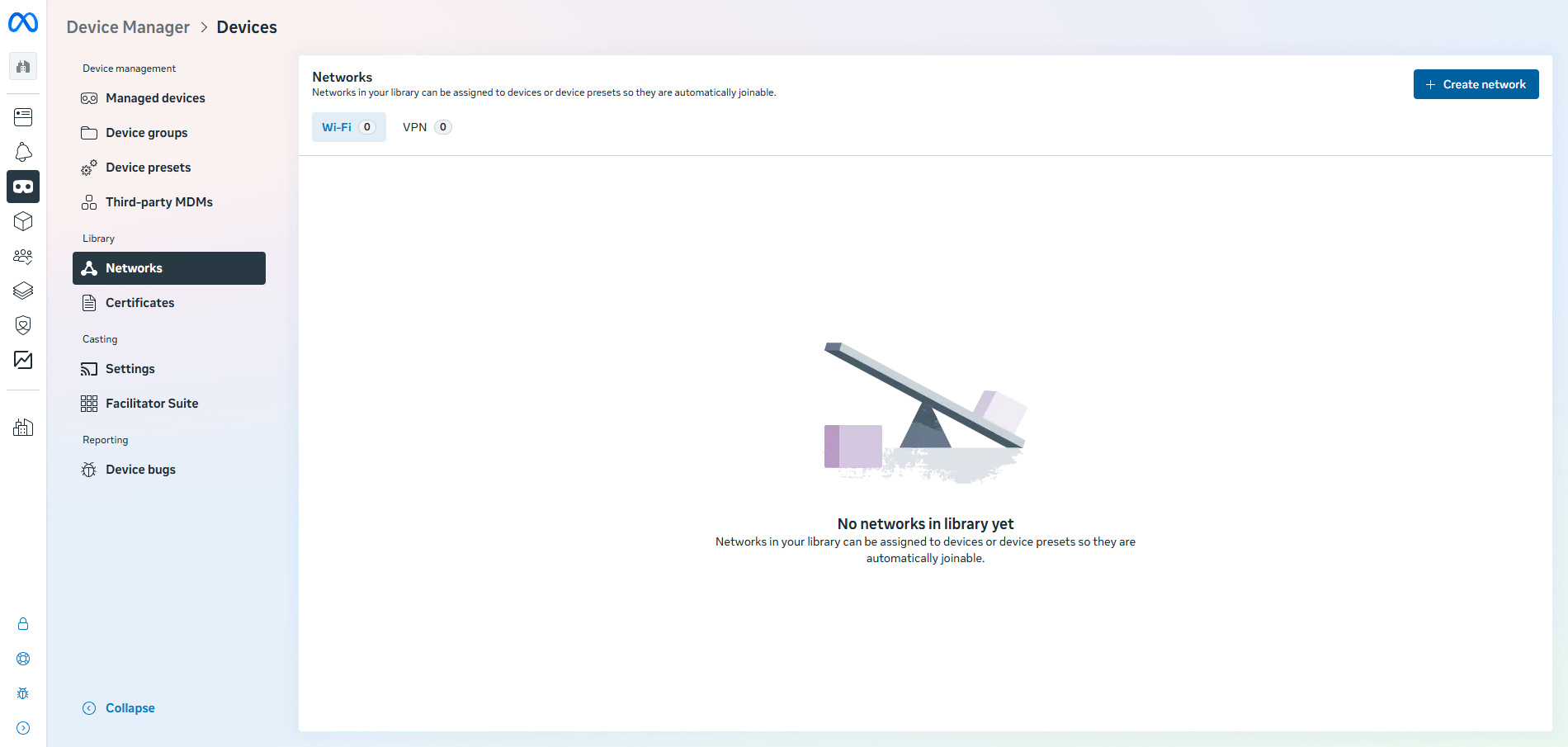
Go to Network tab and click Create network.
-
Enter the network name (SSID) and password for the Wi-Fi network that will be used at your site.
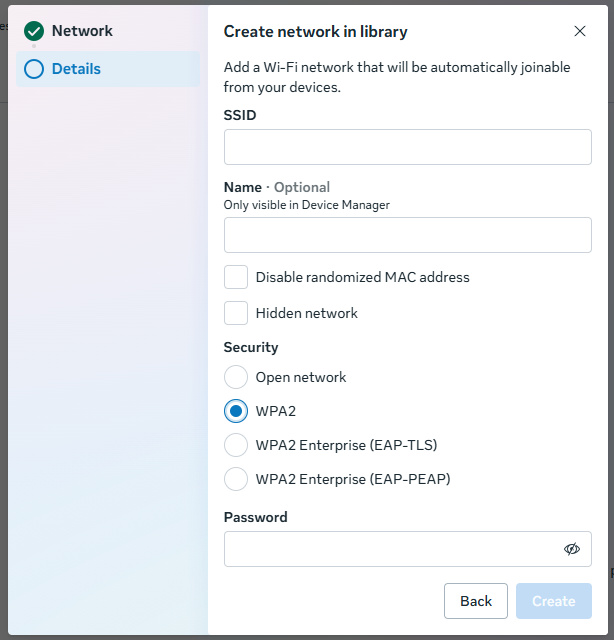
- Save the network.
The network is now saved in your organization's library and can be assigned when creating a device preset in the next step.
10.2.3
Create a device preset with Medicalholodeck
10.2.3.V1.9-01
Individual Mode is required for collaborative positioning. Medicalholodeck needs to know exactly where each headset is standing compared to the others, and only Individual Mode supports this. Shared Mode is not supported and must not be used with Medicalholodeck.
Before enrolling a headset, it is recommended to create a device preset and a device group in Meta Horizon Device Manager.
A device preset is a saved configuration that can include the device mode, apps, files, Wi-Fi settings, restrictions, and other device settings.
Create an Individual Mode preset for every headset that will run Medicalholodeck. Do not select Shared Mode - it does not support collaborative positioning.
- Open HMS's Device Manager.
- Go to Devices.
- Select Device presets and click Create device preset.
-
Select Individual Mode.
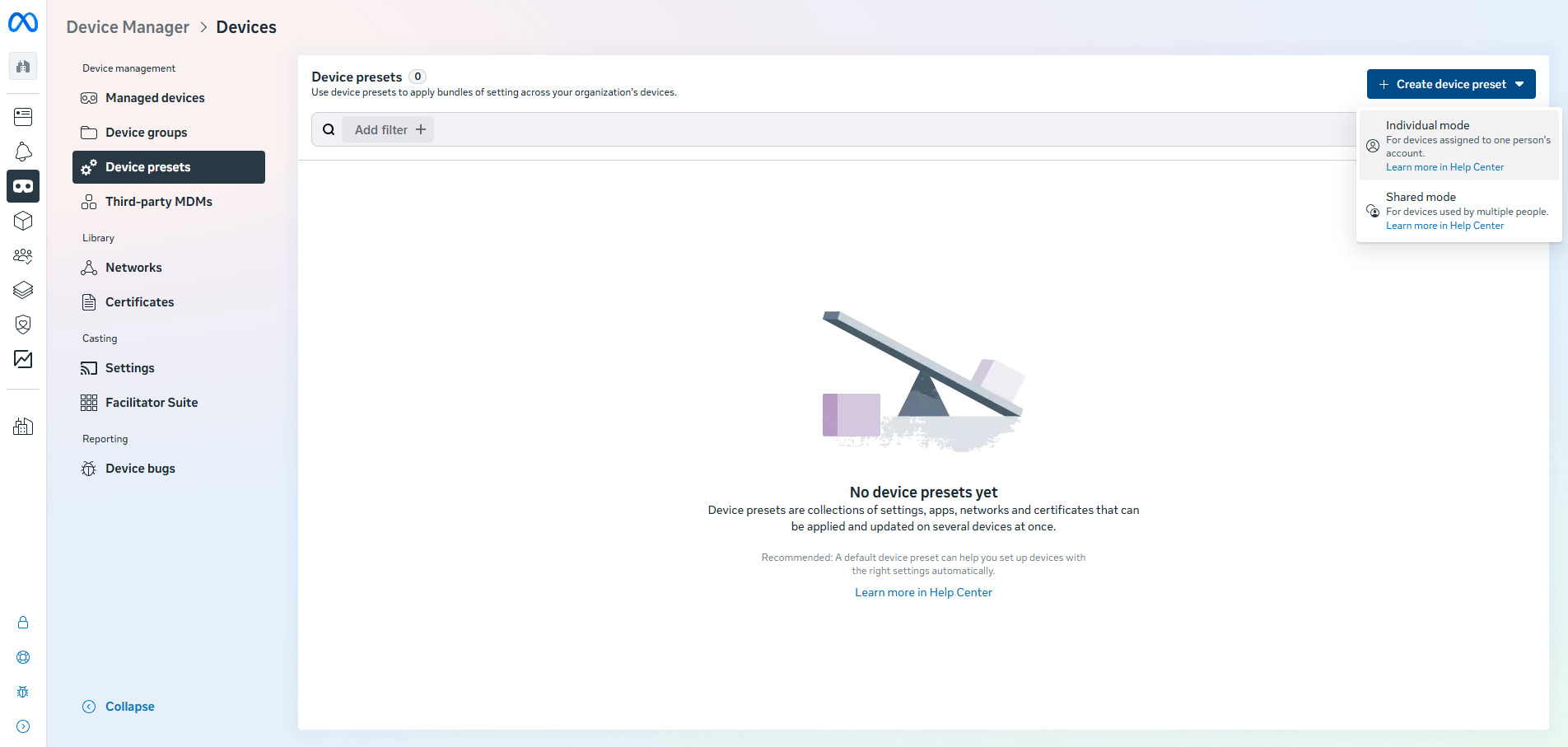
- Go through the preset configuration.
-
In the Apps section, select and add Medicalholodeck.
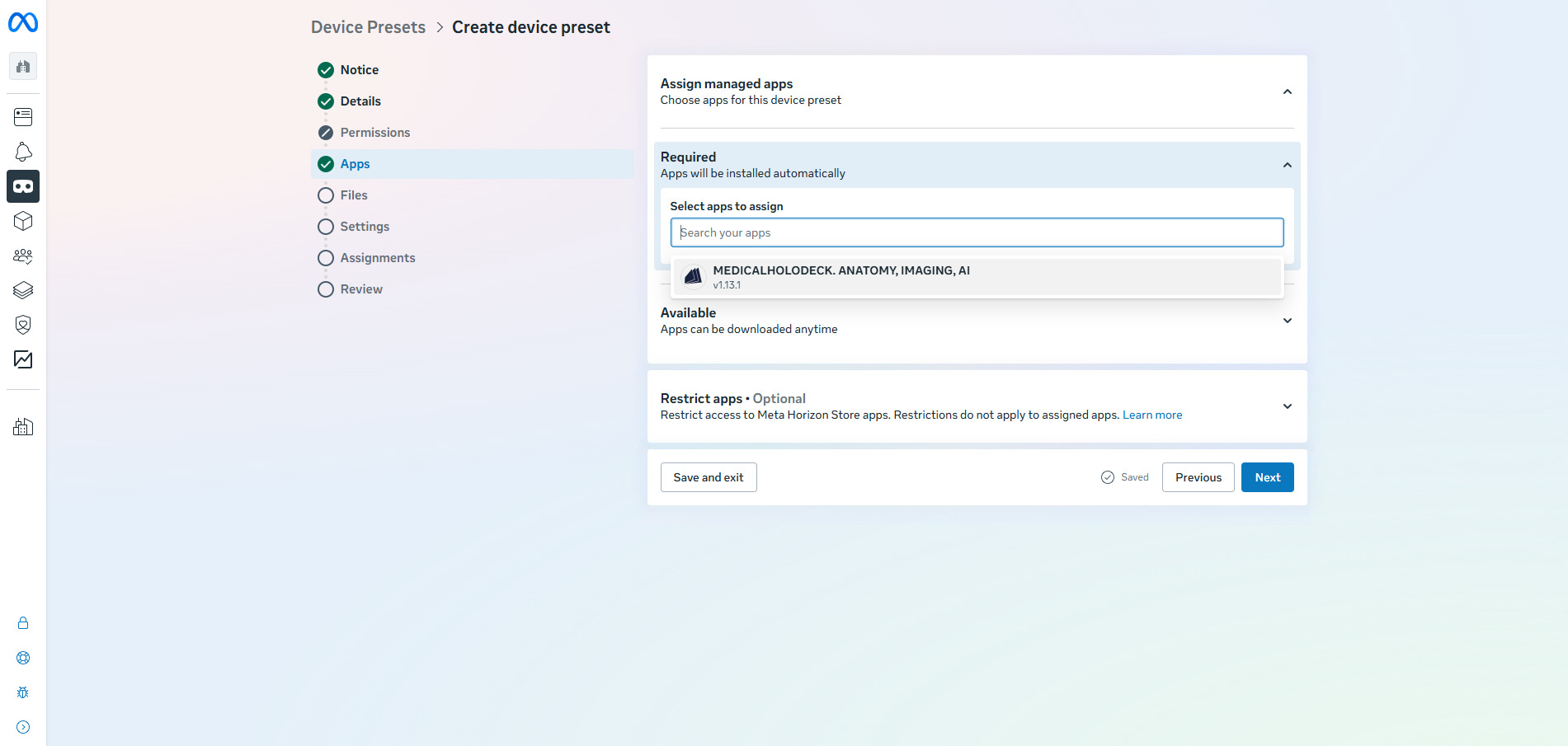
-
Configure the remaining settings, for example app access, restrictions, casting, and Wi-Fi settings - under Wi-Fi settings, select the network you added in the previous step.
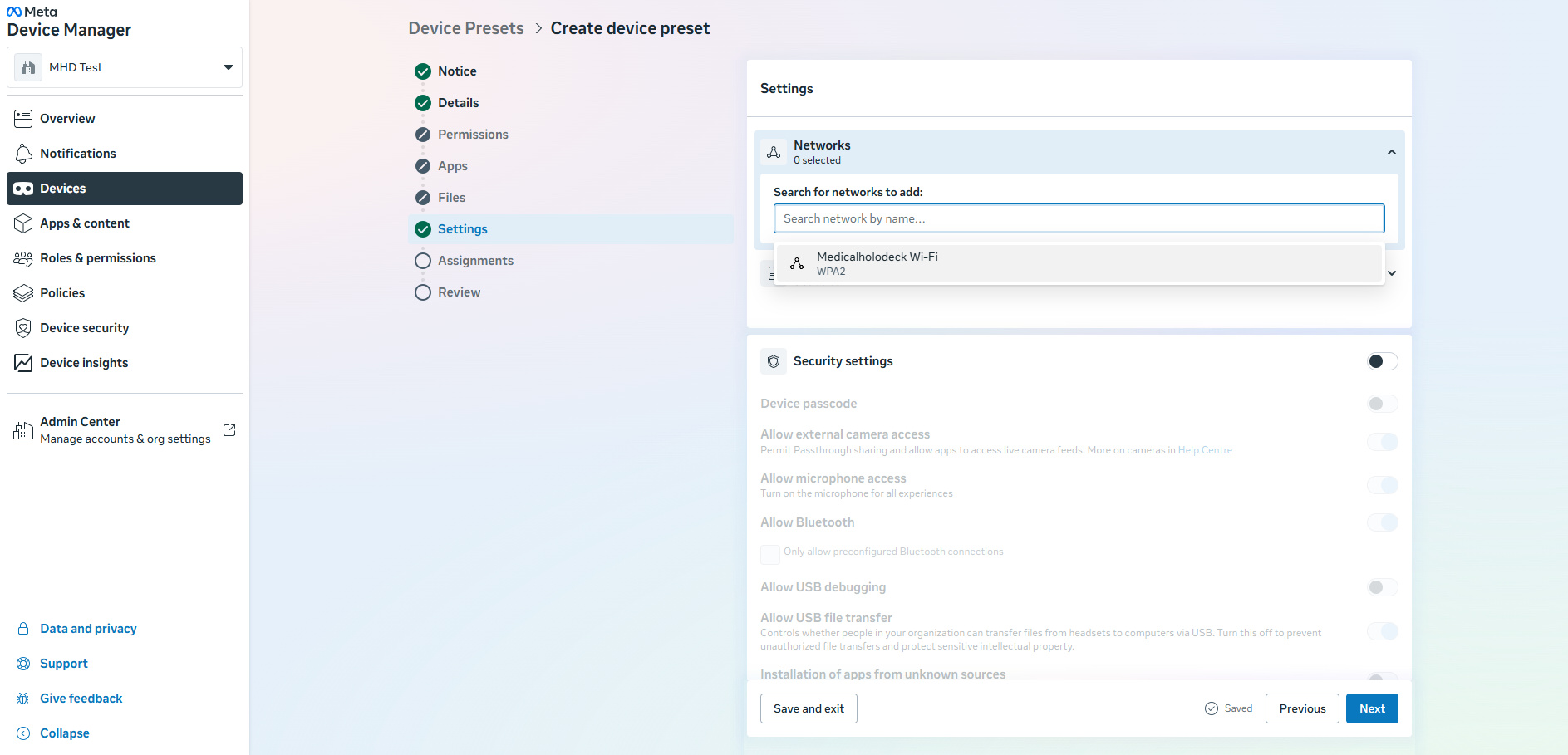
- Save the preset.
Any headset enrolled with this preset will receive the Medicalholodeck app automatically.
10.2.4
Create a device group for Medicalholodeck headsets
10.2.4.V1.9-01
A device group is used to organize multiple headsets and manage them together. For example, all headsets can be placed in one group and receive the same configuration.
-
Go to Device groups and click Create device group.
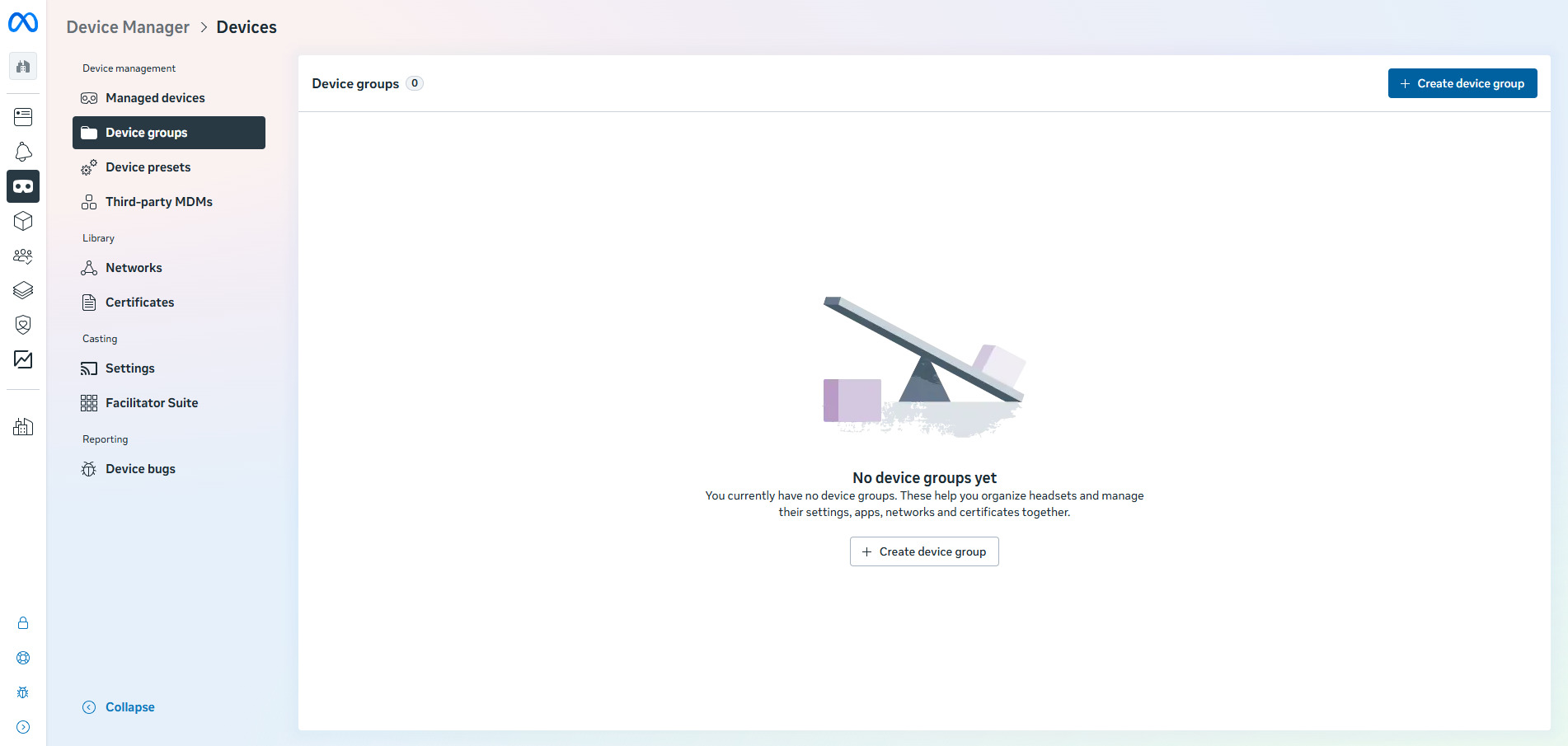
- Name the group.
-
Assign the previously created device preset to this group.
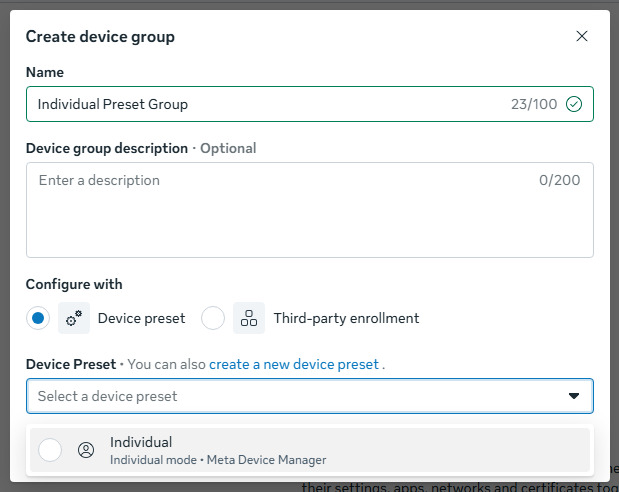
- Create the group.
10.2.5
Enroll devices
10.2.5.V1.9-01
Enroll every headset with a device code, one headset at a time, using an Individual Mode preset. Individual Mode is what makes collaborative positioning work.
Enroll headsets with device code
Repeat these steps for every headset. Sign in with the Meta account each time, so all the headsets can see each other's position.
- Make sure the headset is new or has been factory reset.
- Turn on and put on the headset.
- Follow the first setup screens.
- Connect the headset to Wi-Fi.
- Do not pair it with the normal Meta Horizon mobile app.
- When you see Connect your headset to your organization, select Continue.
- If you see Pair your headset to the Meta Horizon mobile app to continue, select Connect to your organization at the bottom.
- The headset will show an 8-digit device code, remember this code and take off the headset.
- On your computer, log in to the HMS's Device Manager.
-
Go to Managed devices tab, click Enroll Devices and select In Device Manager.
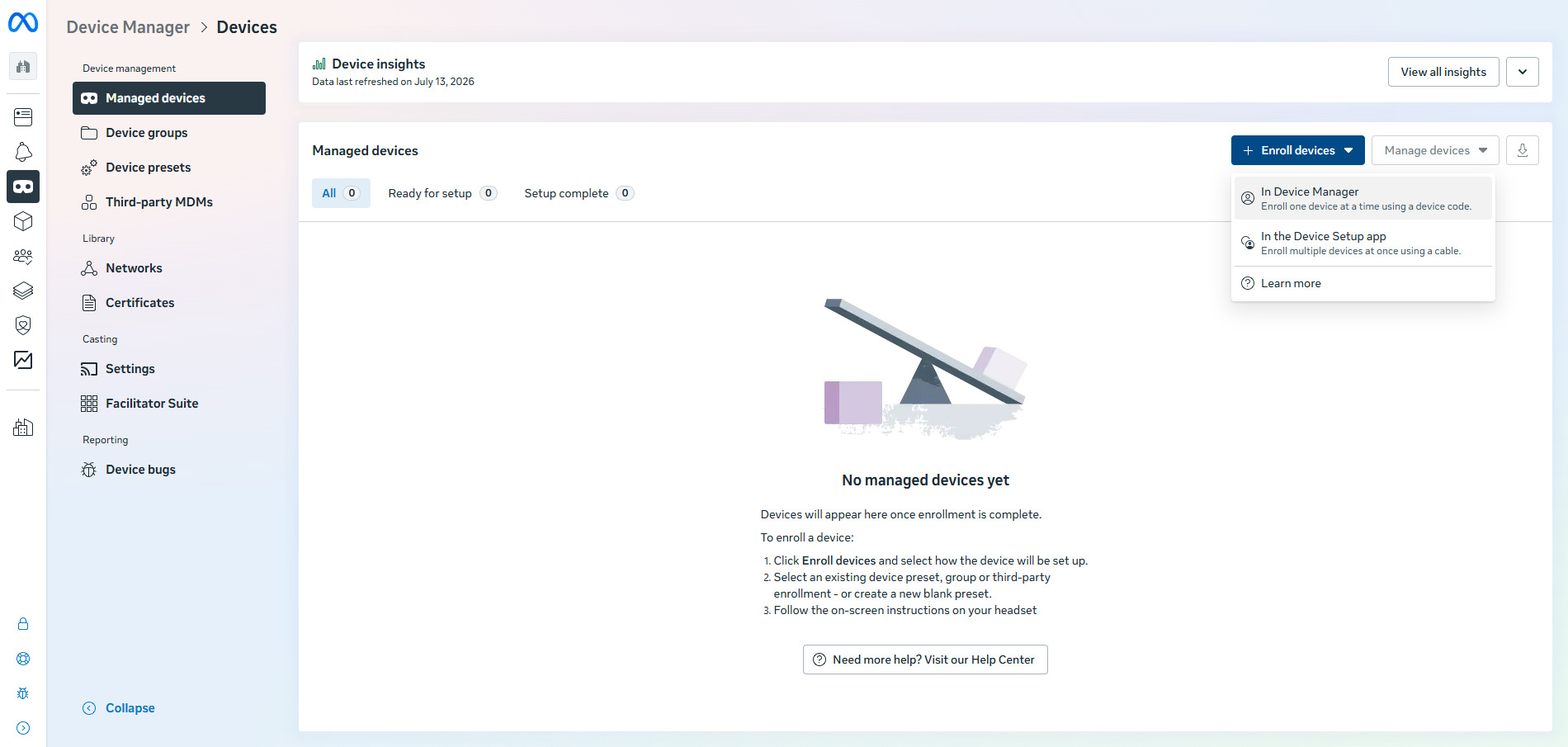
-
Under Select how the device will be configured, choose the correct device preset. Under Enter 8 character temporary device code, enter the code shown inside the headset and make sure you have selected Complete device setup with your own managed Meta account.
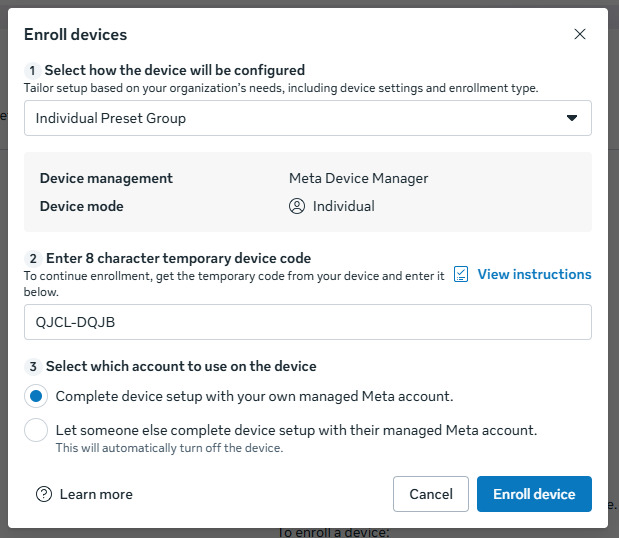
- Click Enroll device.
- Put the headset back on.
- Accept the remaining setup prompts in VR.
- After setup finishes, you can check the headset in: Meta Horizon Device Manager → Managed devices