3.2 Editing a segmentation
3.2.V1.9-01
After segmenting a DICOM model, access segmentation controls in the AI tab to adjust visibility and appearance of anatomical structures.
3.2.1
Structure
3.2.1.V1.9-01
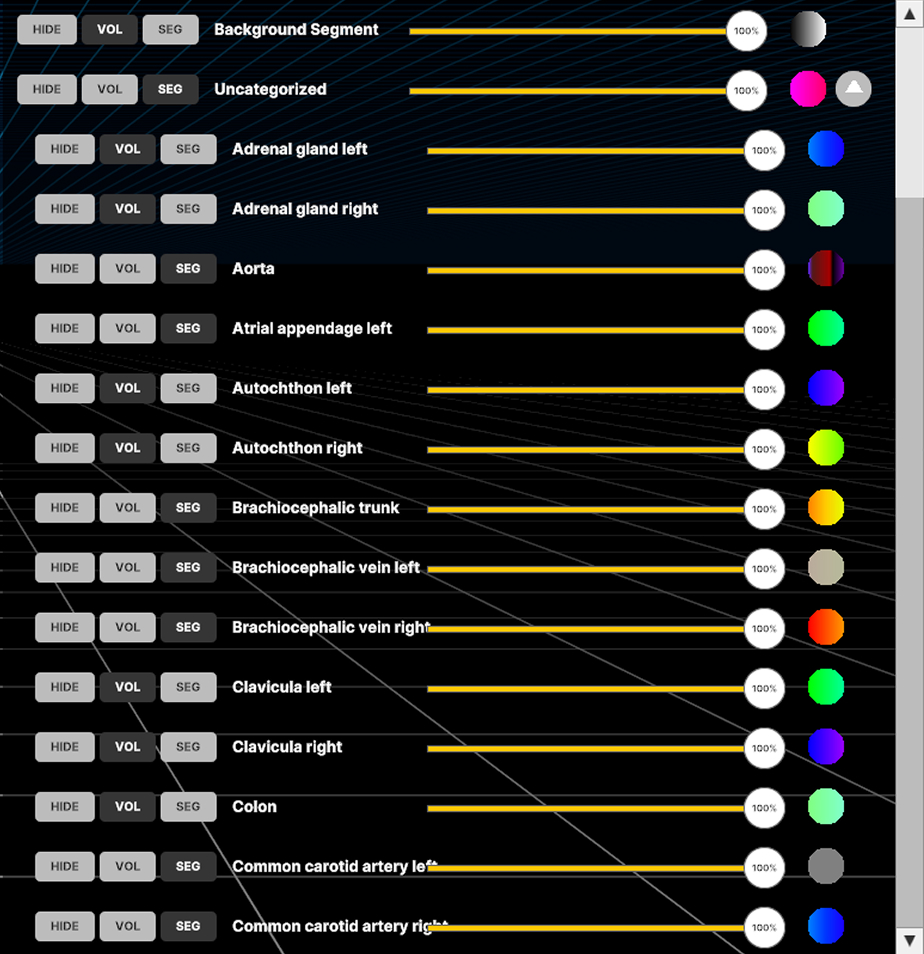
Adjust visibility and transfer functions for specific parts, groups, or the background DICOM data. Group settings override those of individual parts.
3.2.2
Options
3.2.2.V1.9-01
3.2.2.1
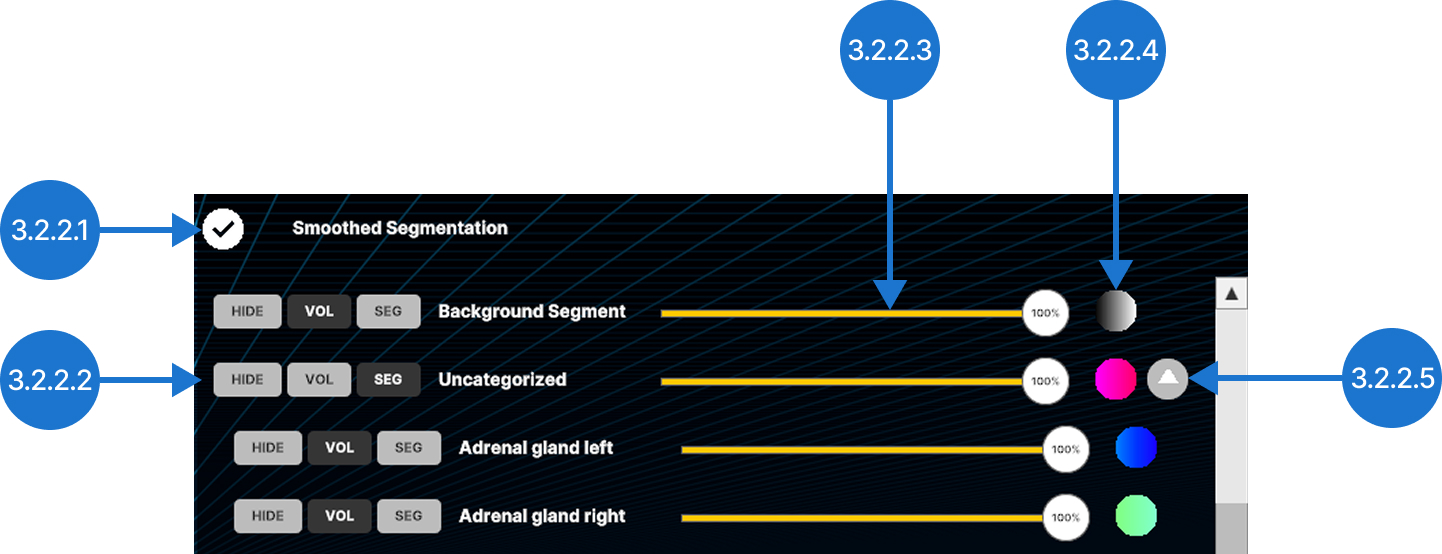
Smoothed segmentation
Smooths the edges of segmented structures.
3.2.2.2
Visibility controls
Controls how the structure or group is displayed. It can be hidden (HIDE), shown using the main transfer function from the colors tab (VOL), or displayed with its own segmentation transfer function (SEG).
3.2.2.3
Opacity slider
Adjusts opacity of the selected structure from 0% to 100%.
3.2.2.4
Segmentation transfer function
Enables setting transparency and colors to specific Hounsfield Units (HU) values using color pins in the segmentation.
3.2.2.4.1
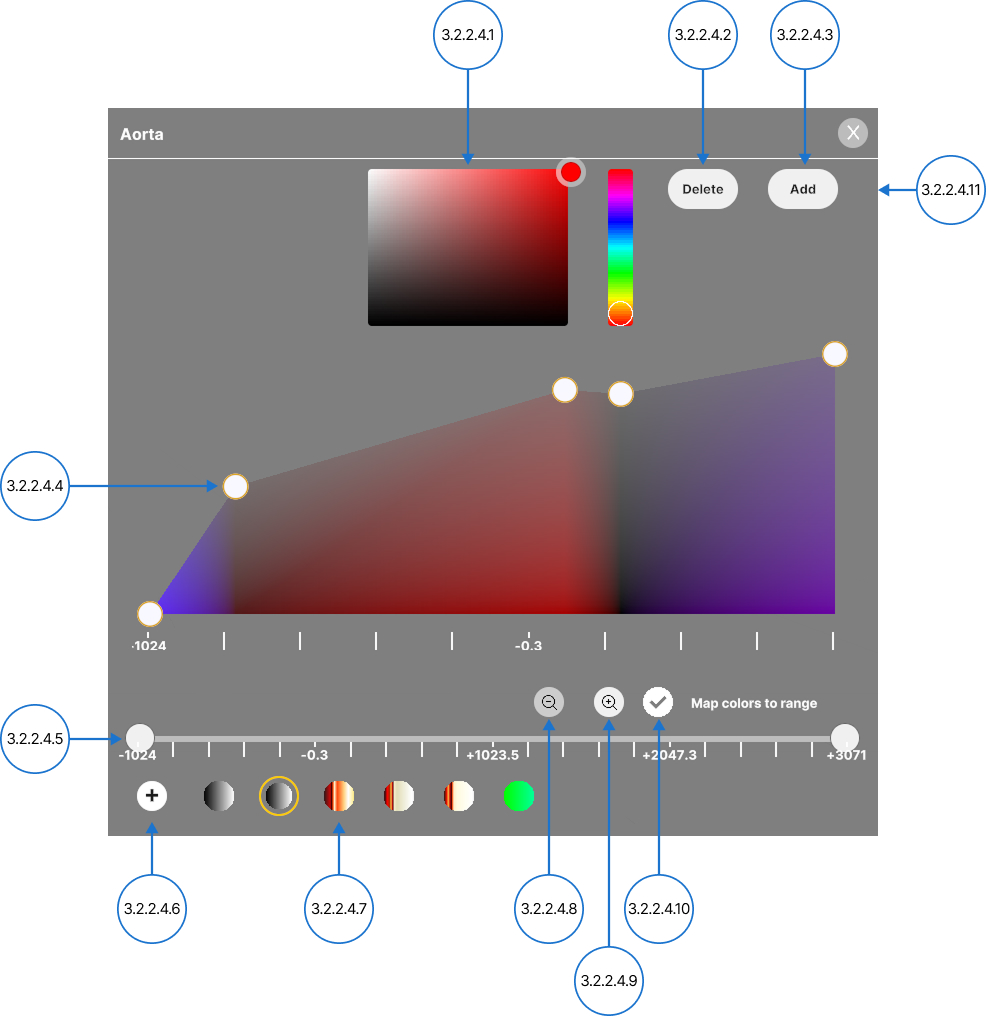
Color picker
Changes the color of a pin.
3.2.2.4.2
Delete
Removes the selected pin from the graph.
3.2.2.4.3
Add
Creates a new pin at the midpoint of the selected color range. You can also select an empty area of the graph to add a pin at that location.
3.2.2.4.4
Color pins
Adjusts transparency and assigns colors to specific Hounsfield Units (HU) values.
Drag a selected pin vertically to change transparency (0–100%, logarithmic scale).
Drag a selected pin horizontally to assign a color to an HU value.
3.2.2.4.5
Tissue filter
Adjusts the visible range of the DICOM data using Hounsfield unit (HU) values. Move the minimum and maximum handles individually, or drag the entire range along the axis.
3.2.2.4.6
Save
Saves the current transfer function as a new preset.
3.2.2.4.7
Transfer function presets
Browse the saved transfer function presets and select one to apply it.
3.2.2.4.8
Zoom out
Restores the HU axis to the default range.
3.2.2.4.9
Zoom in
Scales the HU axis to display only the selected range.
3.2.2.4.10
Map colors to range
Switches between fixed and automatically adjusted color modes. When Map colors to range is disabled, colors remain assigned to specific HU values. As a result, narrowing the HU range may hide some colors. When Map colors to range is disabled, colors remain assigned to specific HU values. As a result, narrowing the HU range may hide some colors.
3.2.2.4.11
Close
Closes the segmentation transfer function panel.