3.2 Modification d’une segmentation
3.2.V1.9-01
Après avoir segmenté un modèle DICOM, accédez aux commandes de segmentation dans l’onglet AI pour ajuster la visibilité et l’apparence des structures anatomiques.
3.2.1
Structure
3.2.1.V1.9-01
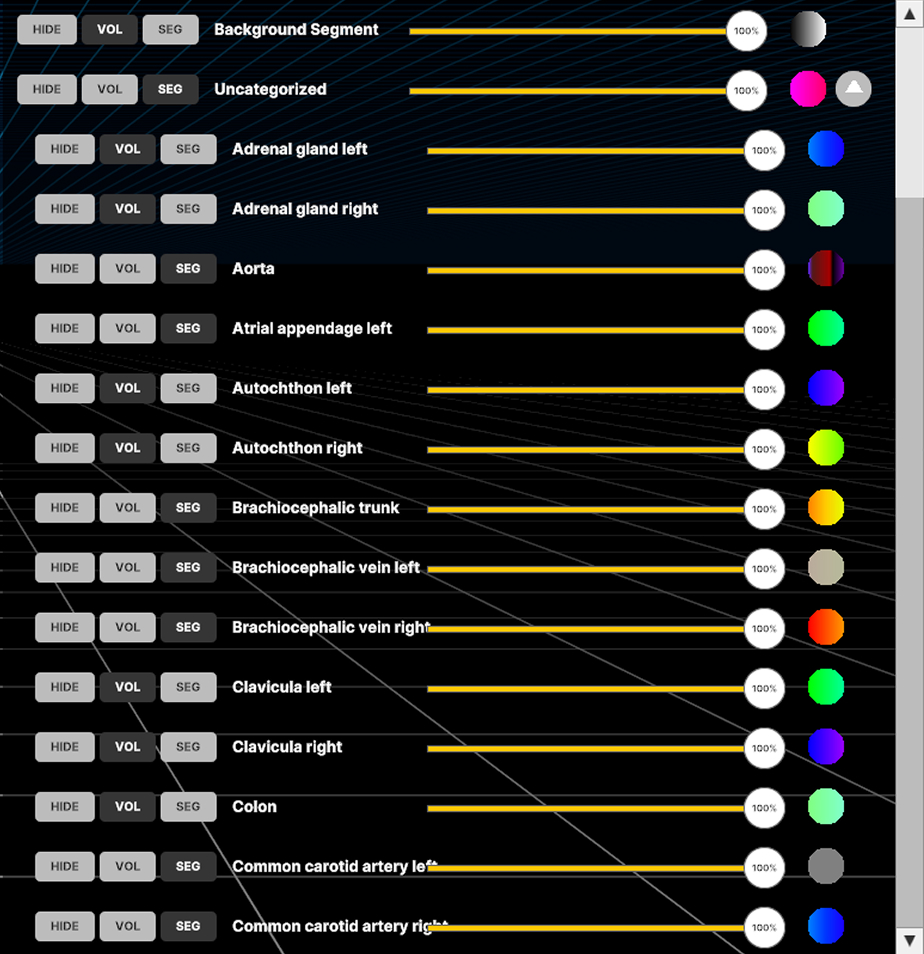
Ajustez la visibilité et les fonctions de transfert de parties spécifiques, de groupes ou des données DICOM d’arrière-plan. Les paramètres de groupe remplacent ceux des parties individuelles.
3.2.2
Options
3.2.2.V1.9-01
3.2.2.1
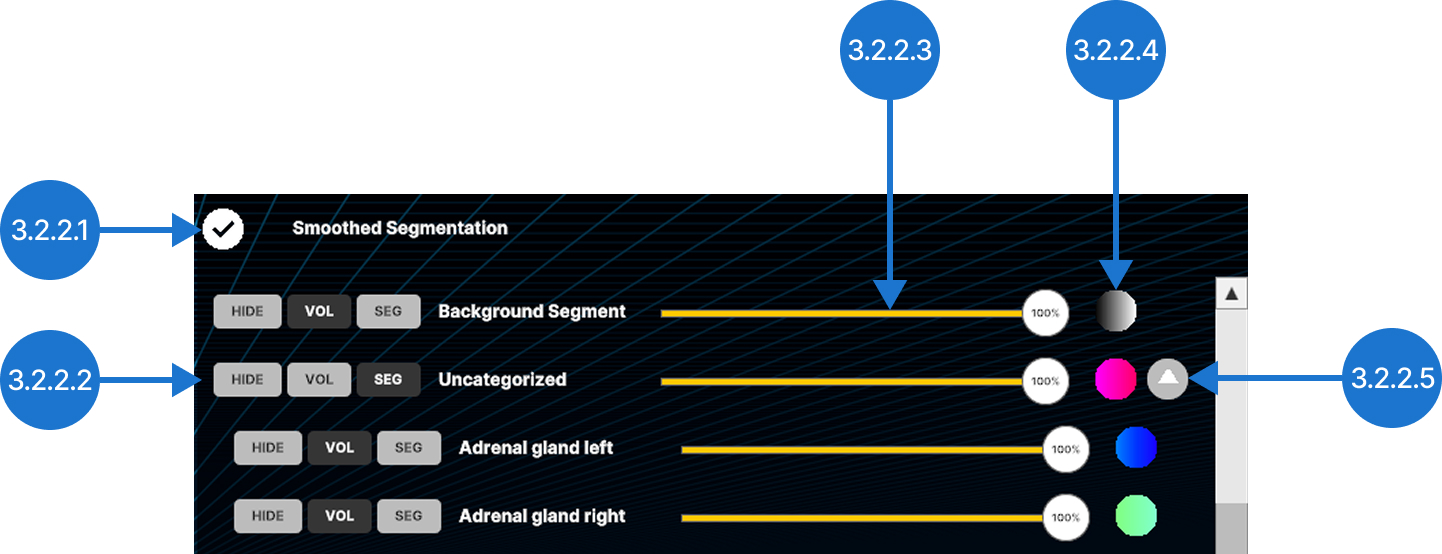
Segmentation lissée
Lisse les contours des structures segmentées.
3.2.2.2
Commandes de visibilité
Contrôle la manière dont la structure ou le groupe est affiché. Il peut être masqué (HIDE), affiché à l’aide de la fonction de transfert principale de l’onglet Colors (VOL) ou affiché avec sa propre fonction de transfert de segmentation (SEG).
3.2.2.3
Curseur d’opacité
Ajuste l’opacité de la structure sélectionnée entre 0% et 100%.
3.2.2.4
Fonction de transfert de segmentation
Permet de définir la transparence et les couleurs de valeurs spécifiques d’unités Hounsfield (HU) à l’aide de repères de couleur dans la segmentation.
3.2.2.4.1
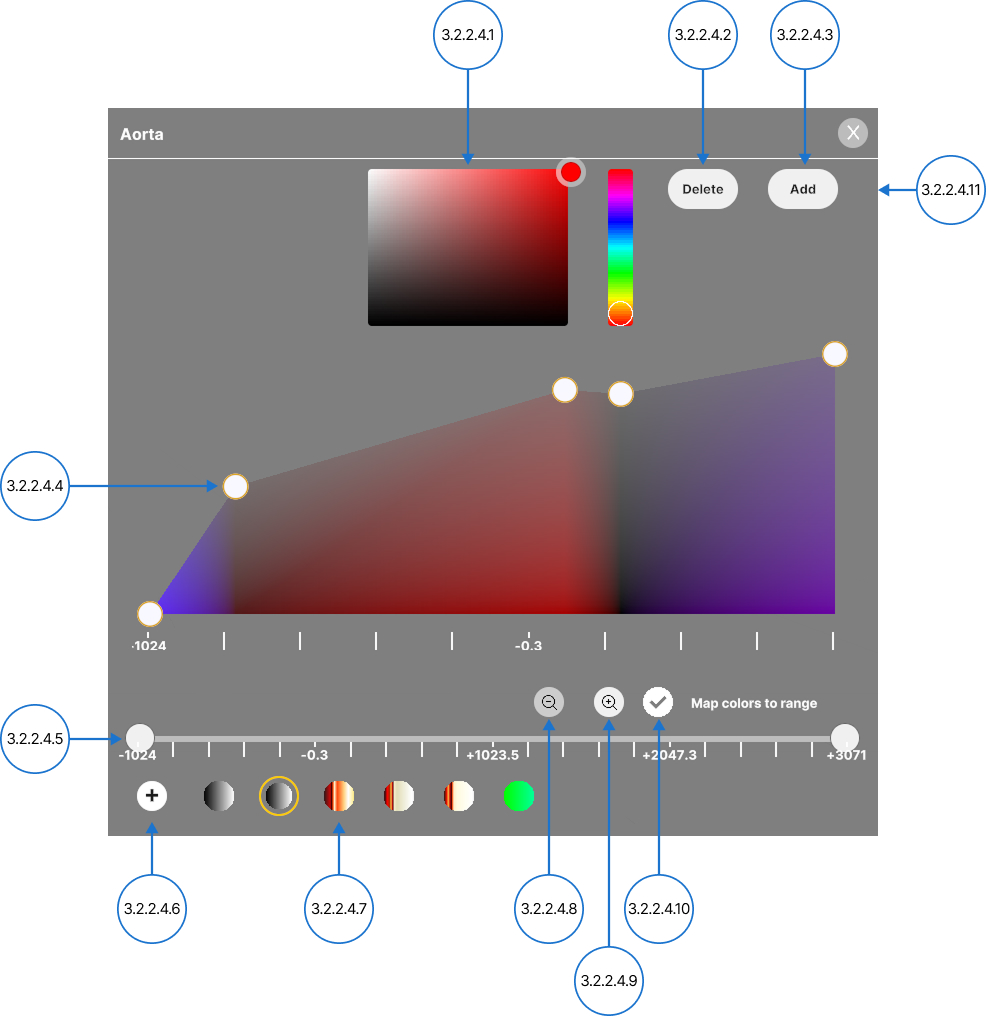
Sélecteur de couleur
Modifie la couleur d’un repère.
3.2.2.4.2
Supprimer
Supprime le repère sélectionné du graphique.
3.2.2.4.3
Ajouter
Crée un nouveau repère au milieu de la plage de couleurs sélectionnée. Vous pouvez également sélectionner une zone vide du graphique pour y ajouter un repère.
3.2.2.4.4
Épingles de couleur
Ajuste la transparence et attribue des couleurs à des valeurs spécifiques d’unités Hounsfield (HU).
Faites glisser verticalement un repère sélectionné pour modifier la transparence (0–100 %, échelle logarithmique).
Faites glisser horizontalement un repère sélectionné pour attribuer une couleur à une valeur HU.
3.2.2.4.5
Filtre tissulaire
Ajuste la plage visible des données DICOM à l’aide des valeurs d’unités Hounsfield (HU). Déplacez séparément les poignées minimale et maximale ou faites glisser toute la plage le long de l’axe.
3.2.2.4.6
Enregistrer
Enregistre la fonction de transfert actuelle comme nouveau préréglage.
3.2.2.4.7
Préréglages de fonction de transfert
Parcourez les préréglages de fonctions de transfert enregistrés et sélectionnez-en un pour l’appliquer.
3.2.2.4.8
Dézoomer
Rétablit la plage par défaut de l’axe HU.
3.2.2.4.9
Zoomer
Met l’axe HU à l’échelle afin d’afficher uniquement la plage sélectionnée.
3.2.2.4.10
Mapper les couleurs à la plage
Bascule entre les modes de couleur fixe et ajusté automatiquement. Lorsque Map colors to range est désactivé, les couleurs restent attribuées à des valeurs HU spécifiques. Par conséquent, la réduction de la plage HU peut masquer certaines couleurs. Lorsque Map colors to range est désactivé, les couleurs restent attribuées à des valeurs HU spécifiques. Par conséquent, la réduction de la plage HU peut masquer certaines couleurs.
3.2.2.4.11
Fermer
Ferme le panneau de la fonction de transfert de segmentation.