3.2 تحرير عملية تجزئة
3.2.V1.9-01
بعد تجزئة نموذج DICOM، افتح عناصر التحكم في التجزئة ضمن علامة التبويب AI لضبط رؤية البنى التشريحية ومظهرها.
3.2.1
البنية
3.2.1.V1.9-01
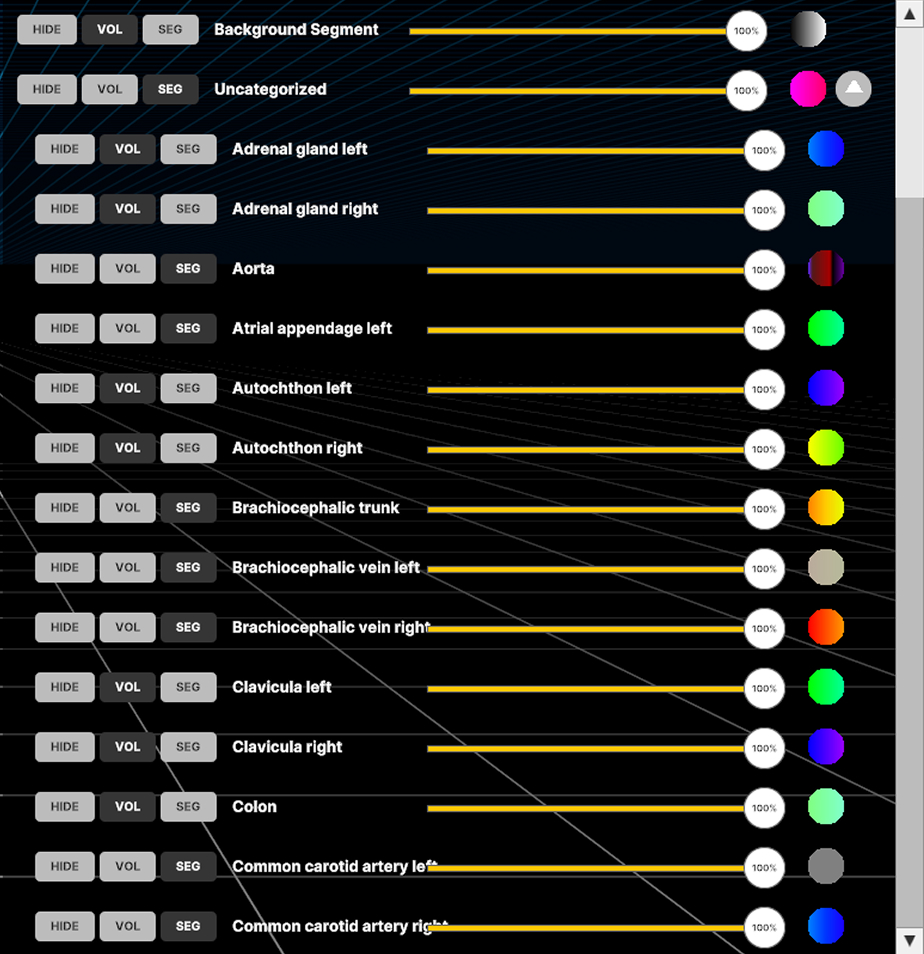
اضبط الرؤية ودوال النقل لأجزاء أو مجموعات محددة أو لبيانات DICOM في الخلفية. تتجاوز إعدادات المجموعة إعدادات الأجزاء الفردية.
3.2.2
الخيارات
3.2.2.V1.9-01
3.2.2.1
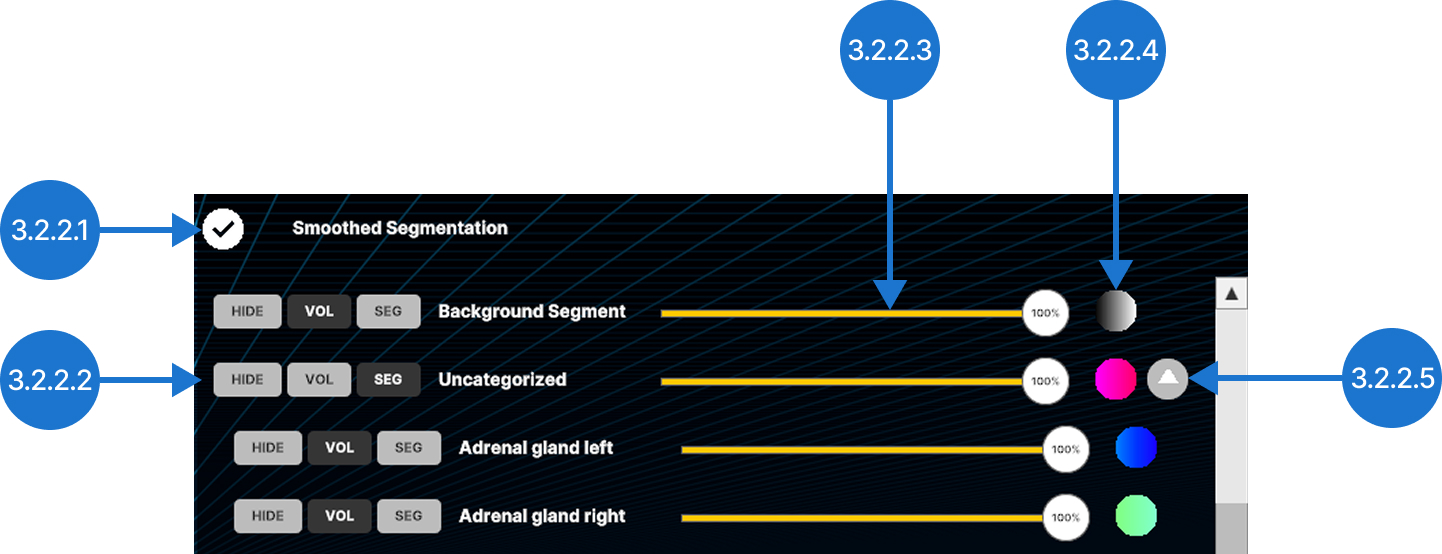
تجزئة مصقولة
ينعّم حواف البُنى المجزأة.
3.2.2.2
عناصر التحكم في الرؤية
يتحكم في كيفية عرض البنية أو المجموعة. يمكن إخفاؤها (HIDE)، أو عرضها باستخدام دالة النقل الرئيسية من علامة التبويب Colors (VOL)، أو عرضها باستخدام دالة نقل التجزئة الخاصة بها (SEG).
3.2.2.3
شريط تمرير العتامة
يضبط عتامة البنية المحددة من 0% إلى 100%.
3.2.2.4
دالة نقل التجزئة
يتيح ضبط الشفافية والألوان لقيم محددة من وحدات هونسفيلد (HU) باستخدام علامات الألوان في التجزئة.
3.2.2.4.1
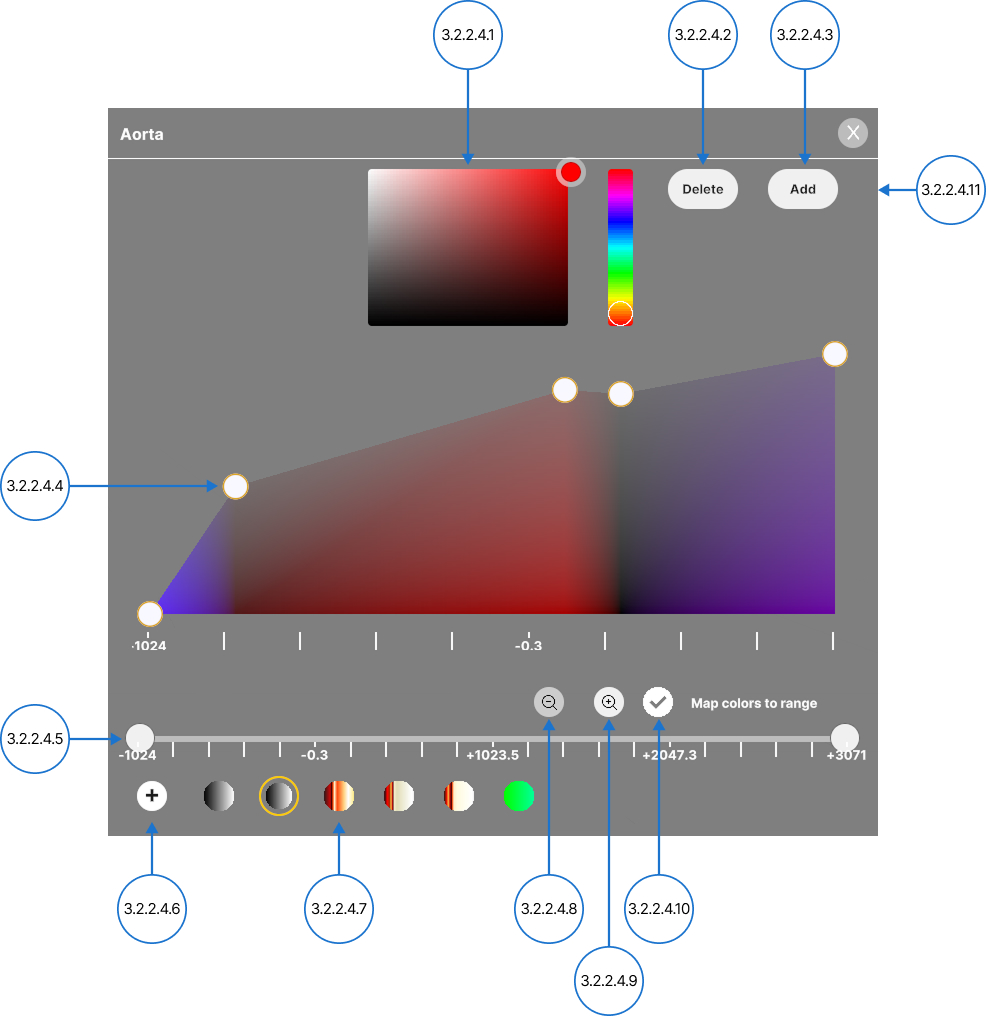
منتقي اللون
يغيّر لون علامة.
3.2.2.4.2
حذف
يزيل العلامة المحددة من الرسم البياني.
3.2.2.4.3
إضافة
ينشئ علامة جديدة عند نقطة منتصف نطاق اللون المحدد. يمكنك أيضًا تحديد منطقة فارغة من الرسم البياني لإضافة علامة في ذلك الموقع.
3.2.2.4.4
دبابيس اللون
يضبط الشفافية ويعيّن الألوان لقيم محددة من وحدات هونسفيلد (HU).
اسحب العلامة المحددة عموديًا لتغيير الشفافية (0–100%، مقياس لوغاريتمي).
اسحب العلامة المحددة أفقيًا لتعيين لون لقيمة HU.
3.2.2.4.5
مرشح الأنسجة
يضبط النطاق المرئي لبيانات DICOM باستخدام قيم وحدات هونسفيلد (HU). حرّك مقابض الحد الأدنى والحد الأقصى كلًا على حدة، أو اسحب النطاق بأكمله على طول المحور.
3.2.2.4.6
حفظ
يحفظ دالة النقل الحالية كإعداد مسبق جديد.
3.2.2.4.7
إعدادات دالة النقل المسبقة
استعرض الإعدادات المسبقة المحفوظة لدوال النقل وحدد أحدها لتطبيقه.
3.2.2.4.8
تصغير
يعيد محور HU إلى النطاق الافتراضي.
3.2.2.4.9
تكبير
يضبط مقياس محور HU لعرض النطاق المحدد فقط.
3.2.2.4.10
مطابقة الألوان مع النطاق
يبدّل بين أوضاع الألوان الثابتة والمضبوطة تلقائيًا. عند تعطيل Map colors to range، تظل الألوان معيّنة لقيم HU محددة. ونتيجة لذلك، قد يؤدي تضييق نطاق HU إلى إخفاء بعض الألوان. عند تعطيل Map colors to range، تظل الألوان معيّنة لقيم HU محددة. ونتيجة لذلك، قد يؤدي تضييق نطاق HU إلى إخفاء بعض الألوان.
3.2.2.4.11
إغلاق
يغلق لوحة دالة نقل التجزئة.