2.2 编辑和查看 DICOM 数据
2.2.V1.9-01
使用预设、亨斯菲尔德单位 (HU) 控件和颜色设置来调整 DICOM 数据的可视化效果。
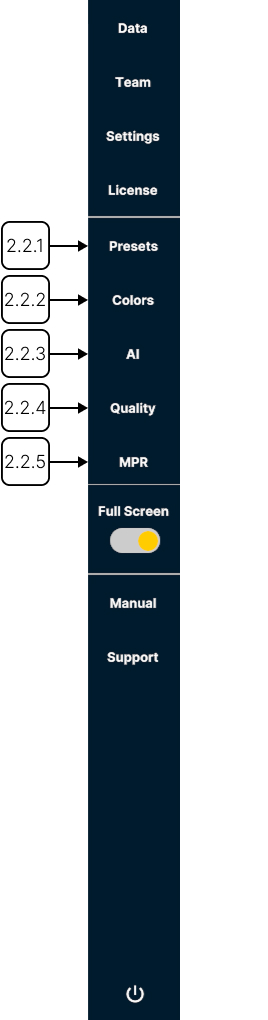
2.2.1
预设
2.2.1.V1.9-01
预设是保存的显示和处理设置配置。滚动浏览预设列表以查看已保存的预设。
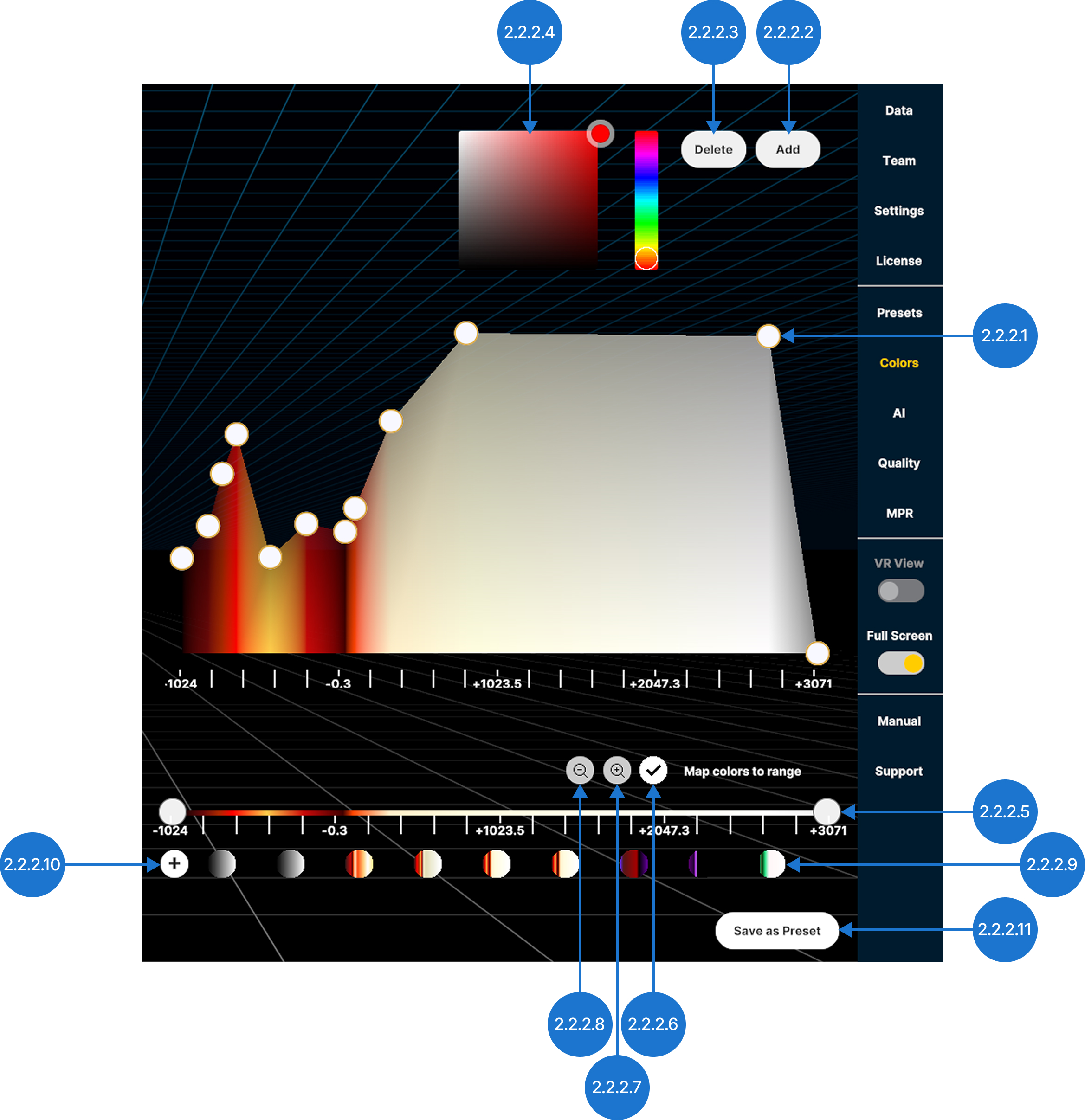
2.2.1.1
添加预设
将当前传输函数、组织过滤器和分割设置保存为新预设。
2.2.1.2
预设
加载已保存的预设。
2.2.1.3
导出
将预设以 .mh 格式保存到输出目录中。
2.2.1.4
删除
删除预设。
2.2.2
颜色
2.2.2.V1.9-01
为特定 HU 值或范围分配颜色和透明度,以改进 DICOM 数据的可视化效果。
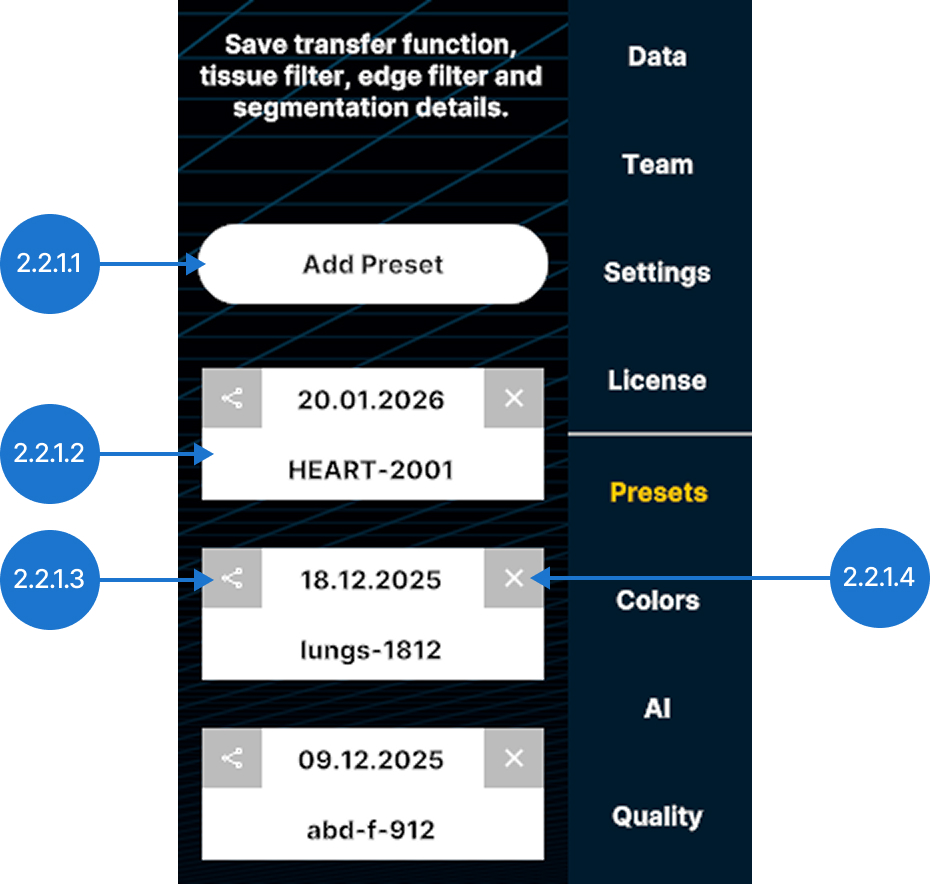
2.2.2.1
颜色选择器
更改色标的颜色。
2.2.2.2
删除
从图表中移除所选标记。
2.2.2.3
添加
在所选颜色范围的中点创建一个新标记。您也可以选择图表中的空白区域,在该位置添加标记。
2.2.2.4
颜色标记
调整透明度,并为特定的亨斯菲尔德单位 (HU) 值分配颜色。
垂直拖动所选色标以更改透明度(0–100%,对数刻度)。
水平拖动所选色标,为 HU 值分配颜色。
2.2.2.5
组织过滤器
使用亨斯菲尔德单位 (HU) 值调整 DICOM 数据的可见范围。分别移动最小值和最大值手柄,或沿轴拖动整个范围。
2.2.2.6
保存传输函数
将当前传输函数保存为新预设。
2.2.2.7
传输函数预设
浏览已保存的传输函数,并选择一个预设进行应用。
2.2.2.8
缩小
将 HU 轴恢复到默认范围。
2.2.2.9
放大
缩放 HU 轴以仅显示所选范围。
2.2.2.10
颜色映射到范围
在固定颜色模式和自动调整颜色模式之间切换。禁用 Map colors to range 后,颜色仍分配给特定的 HU 值。因此,缩小 HU 范围可能会隐藏某些颜色。禁用 Map colors to range 后,颜色仍分配给特定的 HU 值。因此,缩小 HU 范围可能会隐藏某些颜色。
2.2.2.11
另存为选项预设
将主传输函数、组织过滤器和分割设置保存为新预设。
2.2.3
AI
2.2.3.V1.9-01
对 CT 和 MRI 扫描进行自动分割,快速识别并分离器官、骨骼和组织等解剖结构。有关详细信息,请参阅手册第 3 节。
2.2.4
质量
2.2.4.V1.9-01
这些设置可平衡性能和视觉质量。
2.2.4.1
质量滑块
设置当前所选数据集的渲染质量。
注意:高于 50% 的质量设置只能带来轻微的视觉改善,却需要显著更高的处理能力。
2.2.4.2
阴影
切换光源所产生阴影的可见性。
2.2.4.3
添加光源
添加另一个光源(以黄色太阳图标表示)并显示其控制面板。使用滑块调整光照强度。每个模型最多可以添加四个额外光源。

2.2.5
多平面重建 (MPR)
2.2.5.V1.9-01
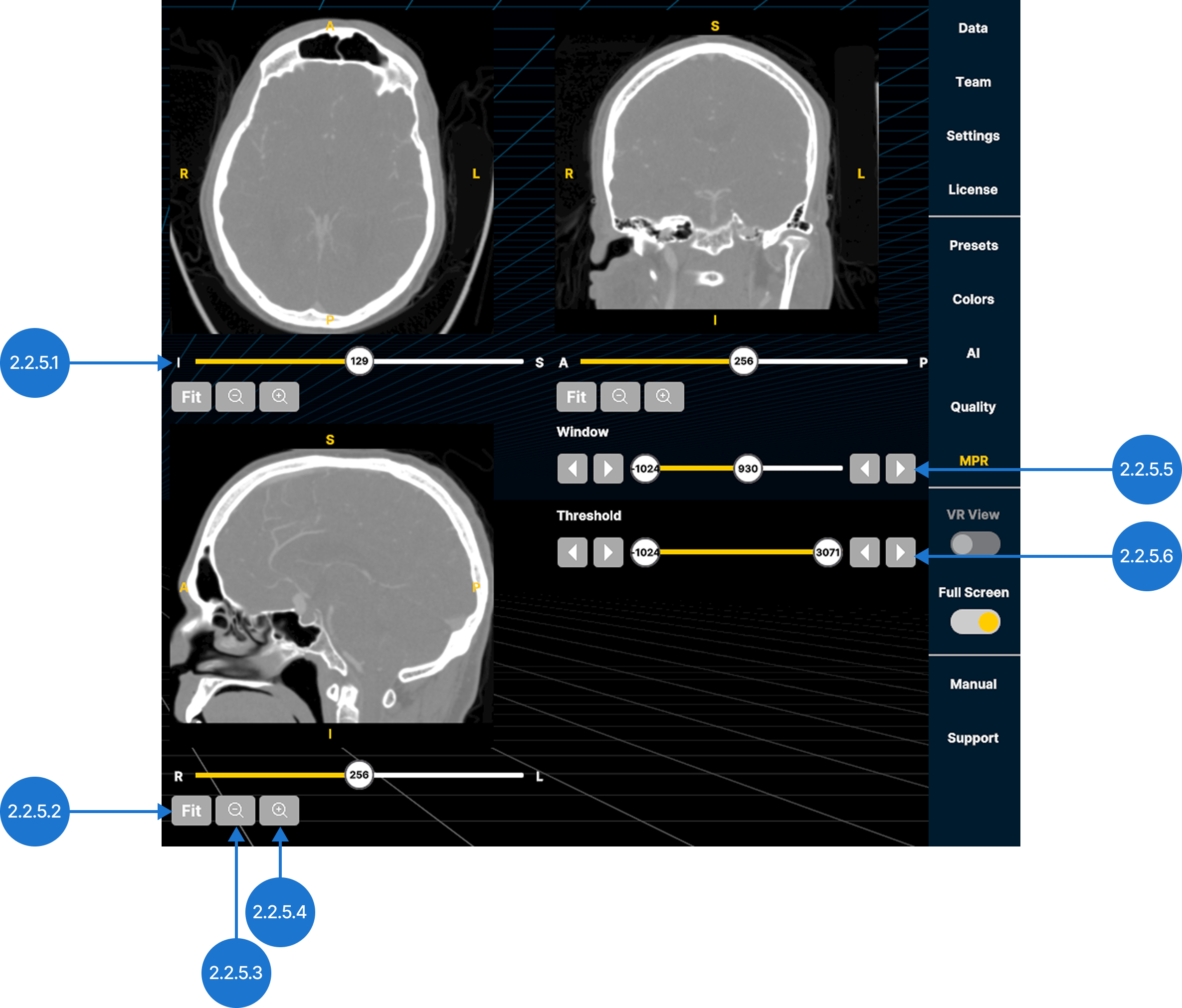
在三个标准解剖平面中查看 DICOM 数据:轴位(从下到上)、冠状位(从前到后)和矢状位(从左到右)。
2.2.5.1
切片滑块
允许您沿所选解剖轴浏览图像切片。
2.2.5.2
适合视图
重置缩放级别,使图像适合视图。
2.2.5.3
缩小
缩小视图。
2.2.5.4
放大
放大视图。
2.2.5.5
窗口
调整显示的灰度值范围。选择滑块并向左或向右移动,然后松开。使用箭头减小或增大数值。
2.2.5.6
阈值
设置显示的亨斯菲尔德单位 (HU) 范围。选择滑块并向左或向右移动,然后松开。使用箭头减小或增大数值。