2.2 DICOMデータの編集と表示
2.2.V1.9-01
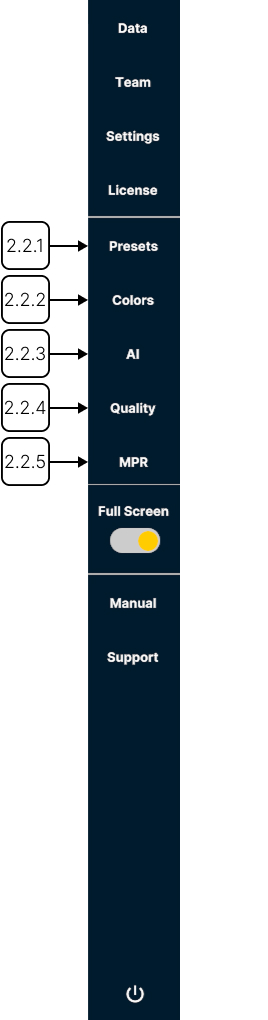
プリセット、ハンスフィールド単位(HU)のコントロール、カラー設定を使用して、DICOMデータの表示を調整します。
2.2.1
プリセット
2.2.1.V1.9-01
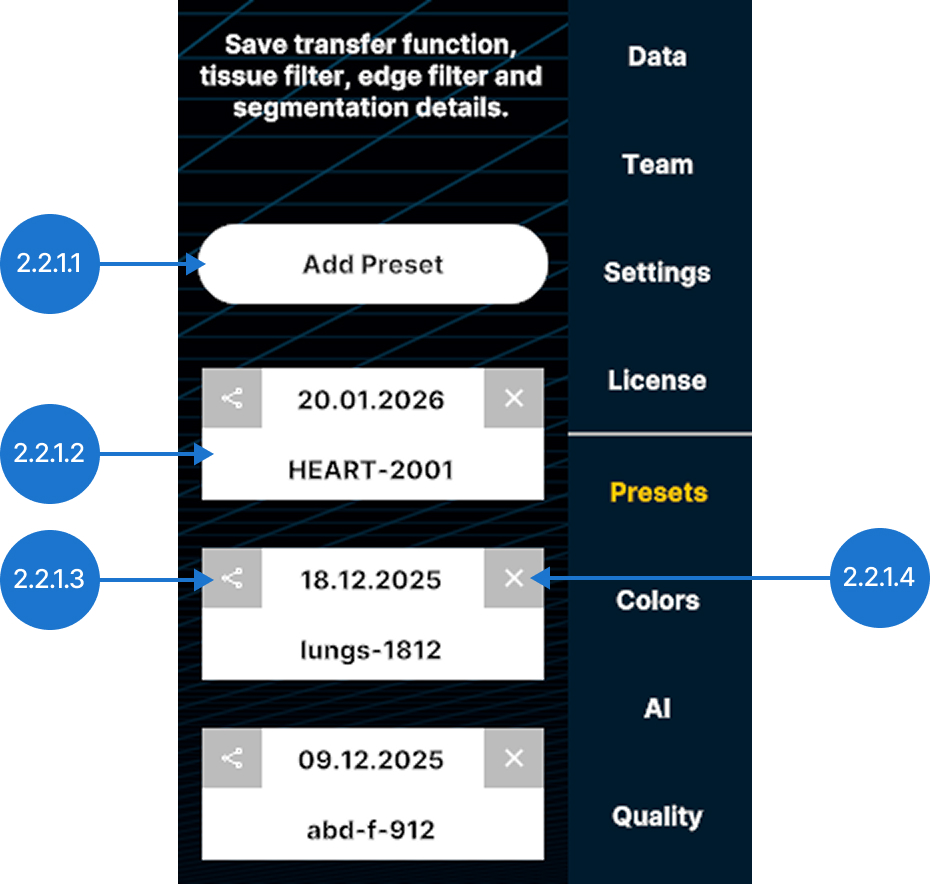
プリセットは、表示設定と処理設定を保存した構成です。プリセットリストをスクロールして、保存済みのプリセットを参照します。
2.2.1.1
プリセットを追加
現在の転送関数、組織フィルター、セグメンテーション設定を新しいプリセットとして保存します。
2.2.1.2
プリセット
保存済みのプリセットを読み込みます。
2.2.1.3
エクスポート
プリセットを.mh形式で出力ディレクトリに保存します。
2.2.1.4
削除
プリセットを削除します。
2.2.2
カラー
2.2.2.V1.9-01
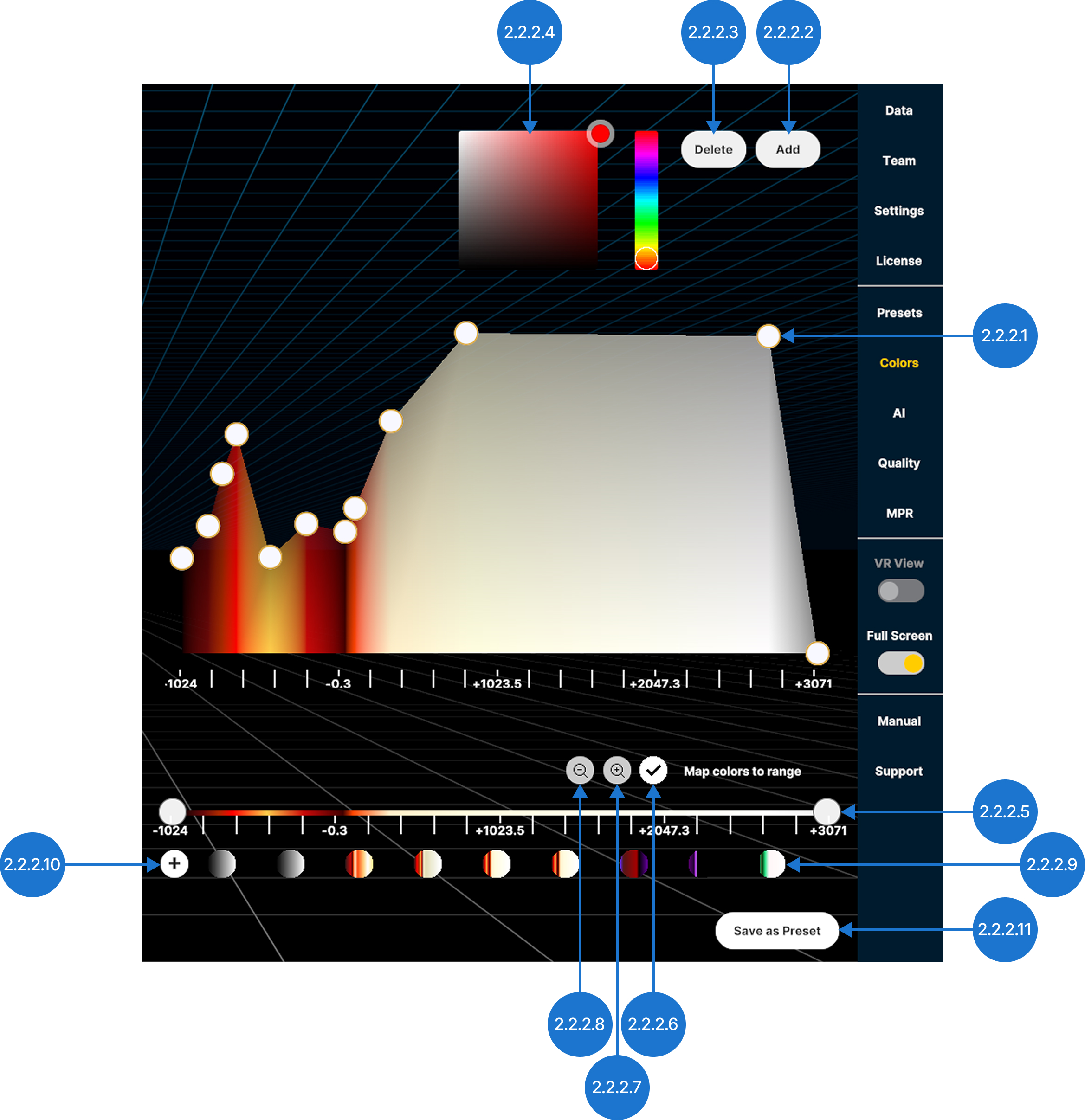
特定のHU値または範囲に色と透明度を割り当てて、DICOMデータの表示を改善します。
2.2.2.1
カラーピッカー
ピンの色を変更します。
2.2.2.2
削除
選択したピンをグラフから削除します。
2.2.2.3
追加
選択した色範囲の中間点に新しいピンを作成します。グラフの空いている領域を選択して、その位置にピンを追加することもできます。
2.2.2.4
カラーピン
透明度を調整し、特定のハンスフィールド単位(HU)の値に色を割り当てます。
選択したピンを上下にドラッグして透明度を変更します(0~100%、対数スケール)。
選択したピンを左右にドラッグして、HU値に色を割り当てます。
2.2.2.5
組織フィルター
ハンスフィールド単位(HU)の値を使用して、DICOMデータの表示範囲を調整します。最小値と最大値のハンドルを個別に動かすか、範囲全体を軸に沿ってドラッグします。
2.2.2.6
転送関数を保存
現在の転送関数を新しいプリセットとして保存します。
2.2.2.7
転送関数プリセット
保存済みの転送関数を参照し、適用するプリセットを選択します。
2.2.2.8
ズームアウト
HU軸をデフォルト範囲に戻します。
2.2.2.9
ズームイン
HU軸を拡大して、選択した範囲のみを表示します。
2.2.2.10
範囲に色をマッピング
固定カラーモードと自動調整カラーモードを切り替えます。Map colors to rangeが無効の場合、色は特定のHU値に割り当てられたままになります。そのため、HU範囲を狭めると一部の色が表示されなくなることがあります。Map colors to rangeが無効の場合、色は特定のHU値に割り当てられたままになります。そのため、HU範囲を狭めると一部の色が表示されなくなることがあります。
2.2.2.11
オプションプリセットとして保存
メインの転送関数、組織フィルター、セグメンテーション設定を新しいプリセットとして保存します。
2.2.3
AI
2.2.3.V1.9-01
CTおよびMRIスキャンを自動的にセグメンテーションし、臓器、骨、組織などの解剖学的構造をすばやく識別して分離します。詳細については、マニュアルのセクション3を参照してください。
2.2.4
品質
2.2.4.V1.9-01
これらの設定により、パフォーマンスと表示品質のバランスを調整できます。
2.2.4.1
品質スライダー
現在選択されているデータセットのレンダリング品質を設定します。
注:50%を超える品質設定では見た目の改善はわずかですが、必要な処理能力が大幅に増加します。
2.2.4.2
影
光源によって生成される影の表示と非表示を切り替えます。
2.2.4.3
ライトを追加
黄色い太陽のアイコンで示される別の光源を追加し、そのコントロールパネルを表示します。スライダーで光の強度を調整します。各モデルには最大4つの光源を追加できます。

2.2.5
多断面再構成(MPR)
2.2.5.V1.9-01
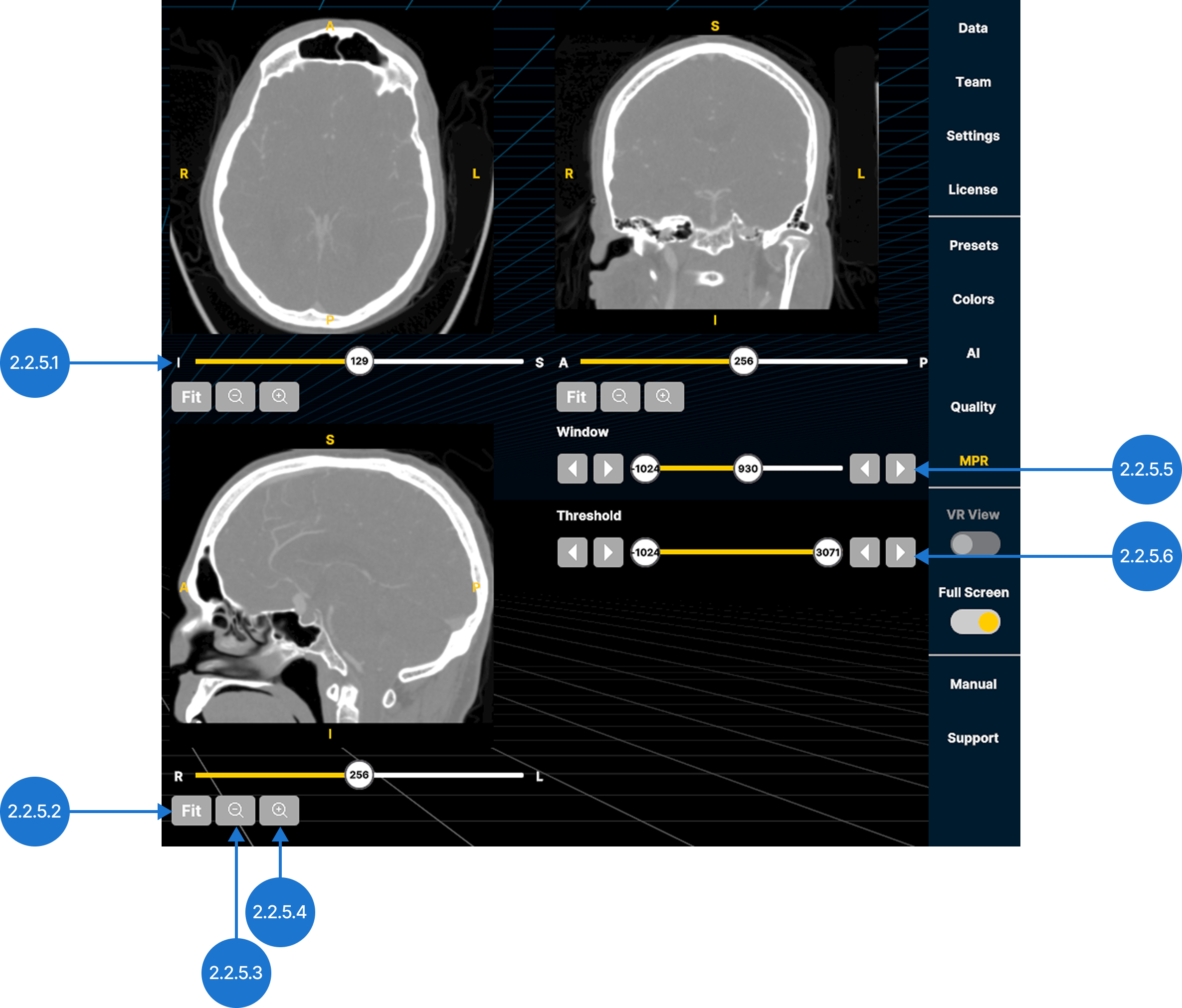
DICOMデータを3つの標準的な解剖学的平面で表示します:軸位(下方から上方)、冠状位(前方から後方)、矢状位(左から右)。
2.2.5.1
スライススライダー
選択した解剖学的軸に沿って画像スライスを移動できます。
2.2.5.2
フィット
ズームレベルをリセットして、画像をビューに合わせます。
2.2.5.3
ズームアウト
ビューをズームアウトします。
2.2.5.4
ズームイン
表示を拡大します。
2.2.5.5
ウィンドウ
表示するグレースケール値の範囲を調整します。スライダーを選択して左右に動かし、離します。矢印を使用して値を減少または増加させます。
2.2.5.6
しきい値
表示するハンスフィールド単位(HU)の範囲を設定します。スライダーを選択して左右に動かし、離します。矢印を使用して値を減少または増加させます。