
1. Spatial OS
1.V1.9-01
Spatial OS स्थानिक मेडिकल इमेजिंग और विज़ुअलाइज़ेशन के लिए एक ऑपरेटिंग सिस्टम है। यह Windows PC पर उपलब्ध है।
यह एक ही कंप्यूटर से बिना चश्मे वाले स्टीरियोस्कोपिक 3D डिस्प्ले, वर्चुअल रियलिटी हेडसेट और सामान्य 2D स्क्रीन को एक साथ सपोर्ट करता है। क्लिनिकल टीमें एक ही स्थानिक परिवेश में रोगी के डेटा को एक साथ देख सकती हैं और उस पर काम कर सकती हैं।
Spatial OS, DICOM डेटा को स्पष्ट और इंटरैक्टिव 3D विज़ुअलाइज़ेशन में बदलता है।
यह प्लेटफ़ॉर्म अस्पताल के रोज़मर्रा के वर्कफ़्लो के लिए बनाया गया है और साझा स्थानिक कार्यक्षेत्र में मेडिकल कम्युनिकेशन को सपोर्ट करता है।
- बिना चश्मे वाले 3D, वर्चुअल रियलिटी और 2D डिस्प्ले के लिए एक प्लेटफ़ॉर्म
- केस की समीक्षा, चर्चा और प्रशिक्षण के लिए 3D विज़ुअलाइज़ेशन
- तेज़, सटीक और सुरक्षित AI सेगमेंटेशन
- स्थानीय प्रोसेसिंग और सेगमेंटेशन, PACS कनेक्टिविटी और HIPAA-अनुपालक सुरक्षा
1.A त्वरित आरंभ
1.A.V1.9-01
1.A.1
Spatial OS चलाना
1.A.1.V1.9-01
Spatial OS एक Windows कंप्यूटर पर चलता है और अलग-अलग हार्डवेयर सेटअप में DICOM, इमेजिंग और 3D डेटा पर काम करने की सुविधा देता है। इसे सामान्य PC स्क्रीन, ऑटोस्टेरियोस्कोपिक 3D डिस्प्ले, VR या इन सभी पर एक साथ उपयोग करें।
1.A.2
अपना VR हेडसेट कनेक्ट करना
1.A.2.V1.9-01
Spatial OS आपको VR हेडसेट को PC से कनेक्ट करने और VR परिवेश में अपने डेटा पर काम करने की सुविधा देता है। PC स्क्रीन और VR हेडसेट, दोनों के लिए पूरा रेंडरिंग आपका PC करता है।
कनेक्ट होने के बाद, आप VR हेडसेट या PC स्क्रीन पर काम कर सकते हैं। PC स्क्रीन व्यू और VR व्यू के बीच जाने के लिए इंटरफ़ेस के ऊपर दिए गए View स्विच का उपयोग करें।
PC और VR हेडसेट को एक साथ उपयोग करने के लिए Second Viewer लाइसेंस एक्टिवेट करें।
Meta Quest हेडसेट के लिए
Link की मदद से Meta Quest हेडसेट को PC से कनेक्ट करने का तरीका देखने के लिए यह वीडियो ट्यूटोरियल देखें:
- इंस्टॉल करें Meta Horizon Link अपने PC पर।
- Spatial OS जैसे VR ऐप्स को Meta Horizon Link के माध्यम से अपना Meta Quest हेडसेट उपयोग करने की अनुमति दें।
Meta Horizon Link में Settings → General खोलें → OpenXR Runtime ढूँढें → Set Meta Horizon Link as active पर क्लिक करें। यदि बटन धूसर है, तो Meta Horizon Link पहले से सक्रिय OpenXR रनटाइम है। - USB या Wi-Fi से अपने हेडसेट को PC से कनेक्ट करें।
- अपने PC पर Meta Horizon Link खोलें और हेडसेट में कनेक्शन की पुष्टि करें।
- अपने PC पर Spatial OS शुरू करें।
Pico हेडसेट के लिए
- इंस्टॉल करें Pico Connect अपने PC (Pico की आधिकारिक वेबसाइट से) और हेडसेट (Pico Store से), दोनों पर।
- अपने PC पर Steam से SteamVR इंस्टॉल करें।
- अपने PC पर Pico Connect शुरू करें और हेडसेट में कनेक्शन की पुष्टि करें (हेडसेट को USB या Wi-Fi से कनेक्ट करें)।
- हेडसेट में Pico Connect से SteamVR शुरू करें।
- अपने PC पर Spatial OS को SteamVR में जोड़ें और चलाएँ।
1.A.3
स्क्रीन और VR व्यू के बीच स्विच करना
1.A.3.V1.9-01
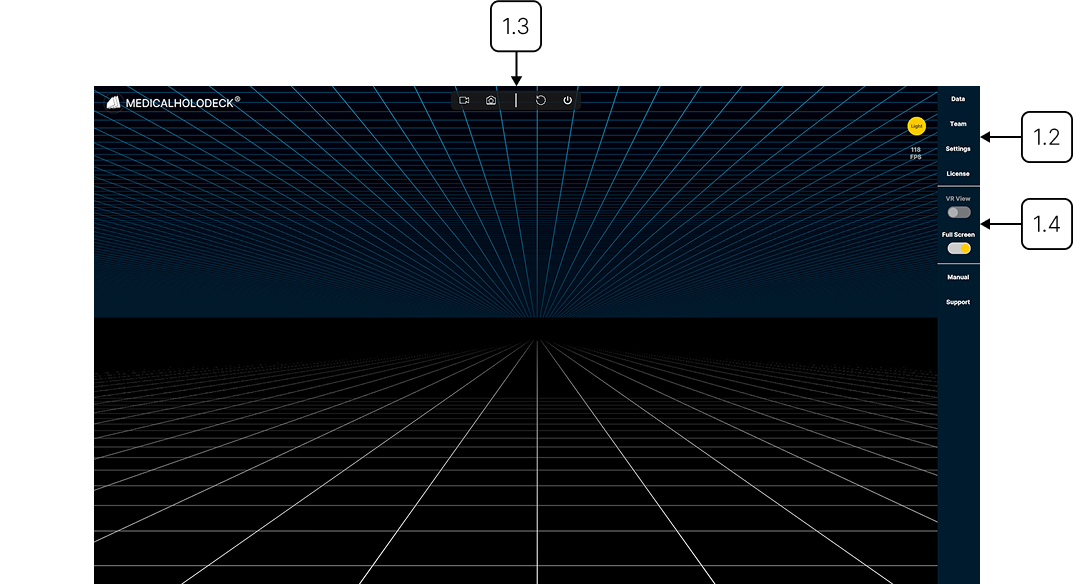
PC स्क्रीन और VR व्यू के बीच स्विच करने के लिए टॉप बार में मौजूद View स्विच का उपयोग करें। इससे आप डेटा के साथ इंटरैक्ट करने के लिए अपना पसंदीदा दृष्टिकोण चुन सकते हैं।
यदि Secondary Viewer लाइसेंस एक्टिवेट है, तो आप PC स्क्रीन और VR हेडसेट, दोनों को एक साथ उपयोग कर सकते हैं। इस स्थिति में, स्विच की मदद से PC पर काम करने और VR परिवेश का प्रीव्यू देखने के बीच जा सकते हैं।
1.A.4
3D स्क्रीन कनेक्ट करना
1.A.4.V1.9-01
सामान्य सेटअप में निर्माता की वेबसाइट से आवश्यक ड्राइवर और सॉफ़्टवेयर इंस्टॉल किए जाते हैं। इसके बाद वीडियो के लिए HDMI या DisplayPort केबल और ज़रूरत होने पर डेटा ट्रांसफ़र के लिए USB केबल से डिस्प्ले कनेक्ट किया जाता है। कुछ डिवाइस एक ही USB-C कनेक्शन से दोनों कार्य कर सकते हैं।
केबल कनेक्ट करने के बाद मॉनिटर और कंप्यूटर चालू करें और सुनिश्चित करें कि सही इनपुट स्रोत चुना गया है। अंत में, 3D सुविधाएँ एक्टिवेट करने के लिए निर्माता का सॉफ़्टवेयर शुरू करें।
1.A.4.1
समर्थित 3D स्क्रीन
संगत डिवाइस में शामिल हैं Acer SpatialLabs, Samsung Odyssey 3D और Barco Eonis. इन सिस्टम को उच्च-रिज़ॉल्यूशन मेडिकल इमेजिंग और सटीक डेप्थ रेंडरिंग के लिए कैलिब्रेट किया गया है।